Assignment module: reviewer
Personal account of a legal entity employee
Signing in to your personal account
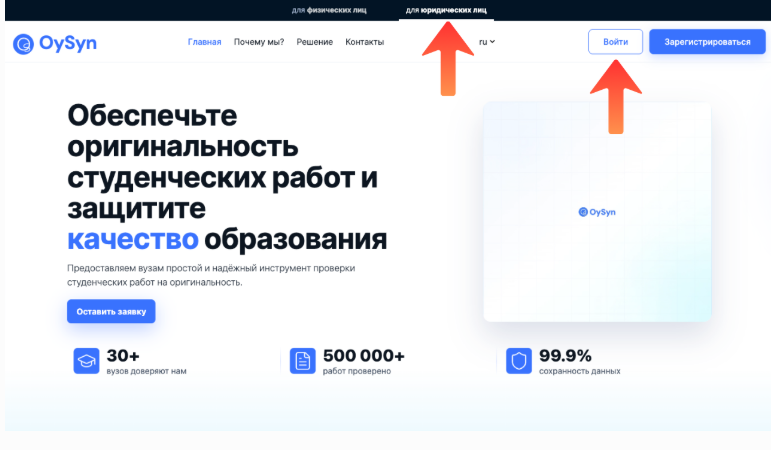
On the website OySyn.asia select the section “For legal entities” and click the button “Sign in”.
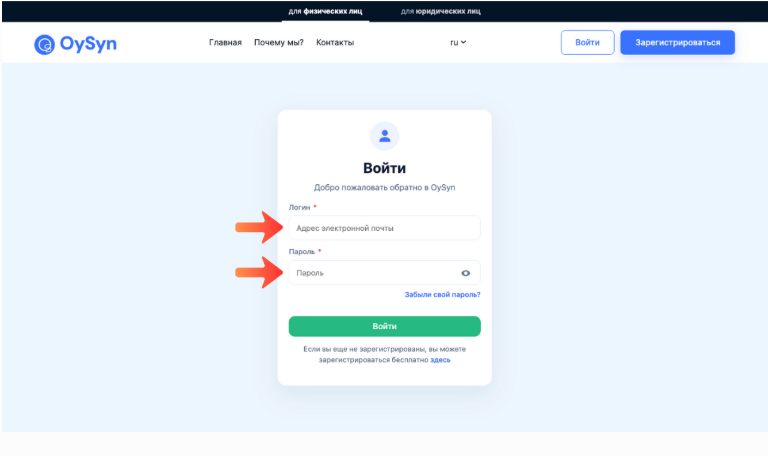
Enter email address and passwordprovided by your organization's administrator or used when signing up, then click “Sign in”.
Note:
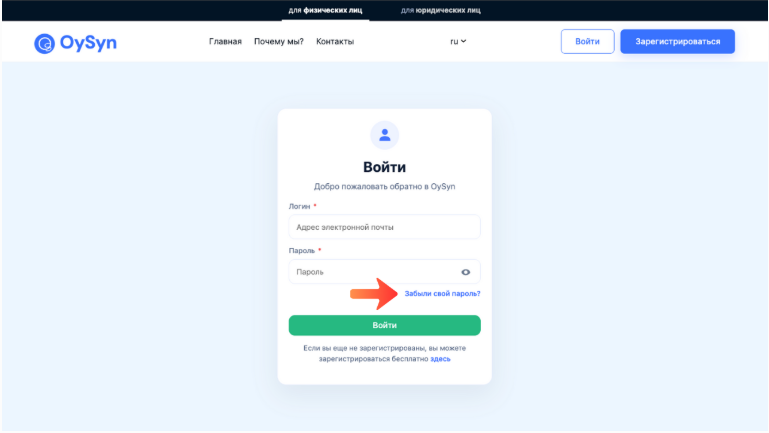
If you have lost your password, use the link “Forgot your password?”.
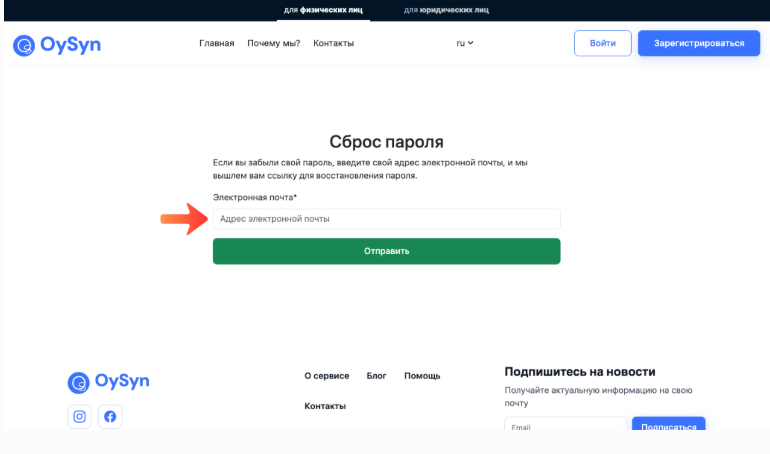
Enter the email address you used when signing up and follow the instructions in the recovery email.
Working in your personal account
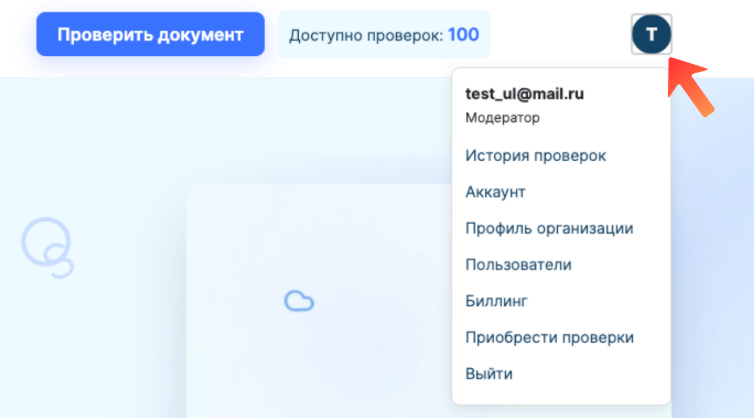
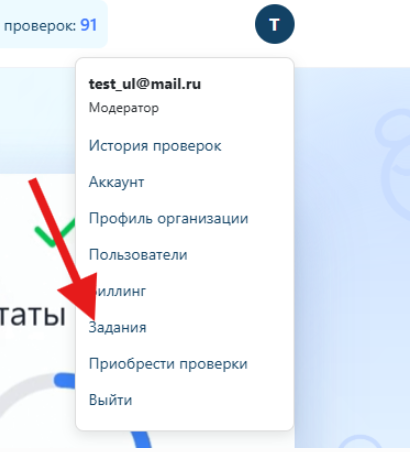
To go to the main sections, click the profile icon in the top right corner of the screen and select the menu item you need.
“Assignments” section
Select the menu item “Assignments”.
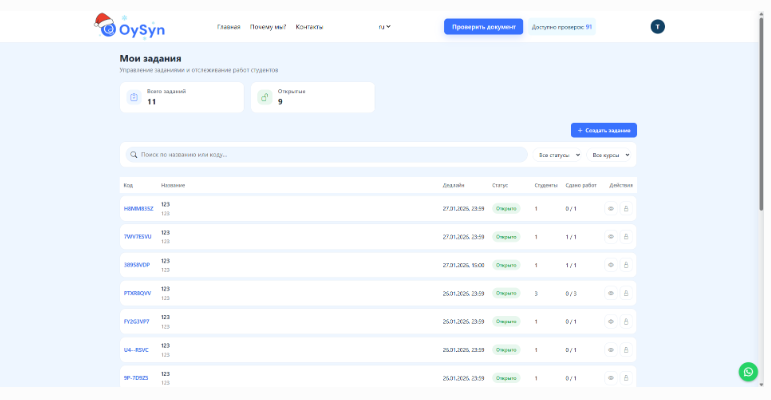
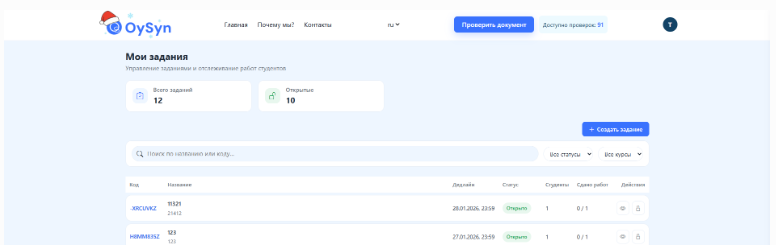
The page shows summary information and statistics for all assignments created in the organization.
Creating a new assignment
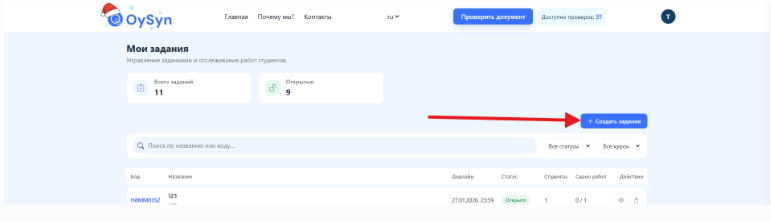
To create a new assignment, click the “Create assignment”.
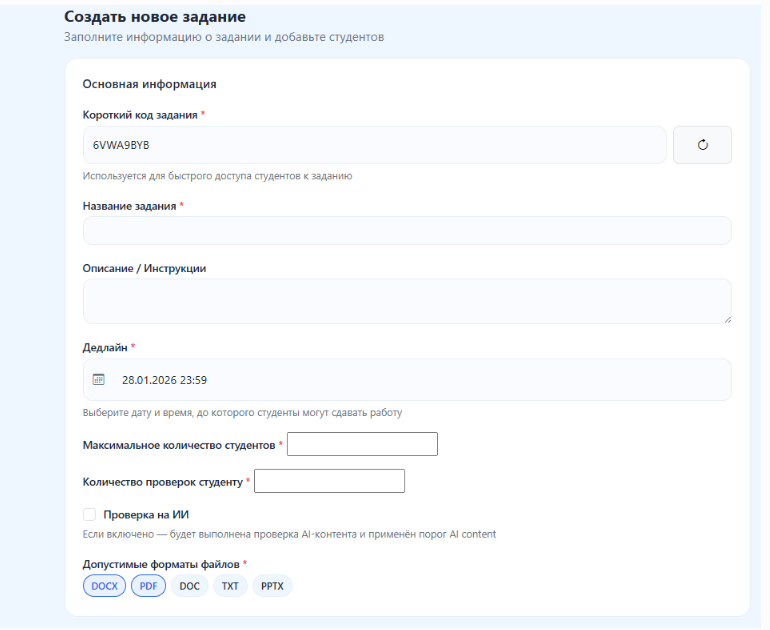
A page opens with a form consisting of three main blocks.
1. Basic information
Enter the required assignment settings:
- short assignment code
- assignment title
- due date (deadline)
- maximum number of students
- number of checks allowed per student
- whether an AI check is required
- allowed formats for uploaded files
2. Check settings
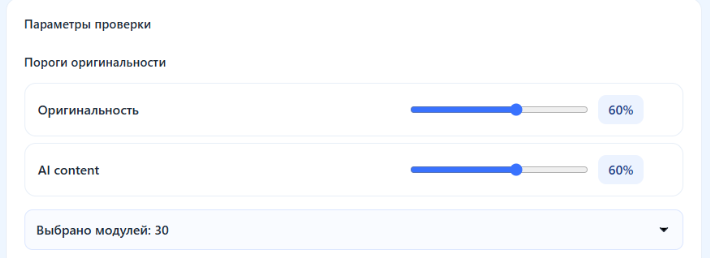
This section sets:
- originality threshold
- check modules to enable or disable
3. Adding students
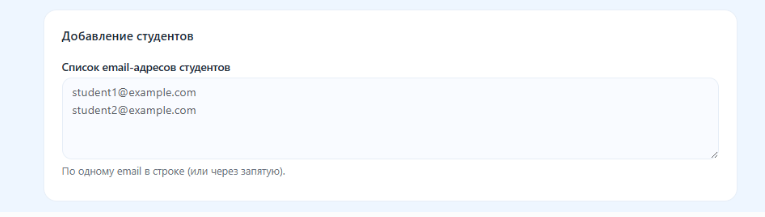
Enter the email addresses of the students who will be invited to complete the assignment.
Publishing an assignment
After filling in all settings, click the “Publish assignment”.
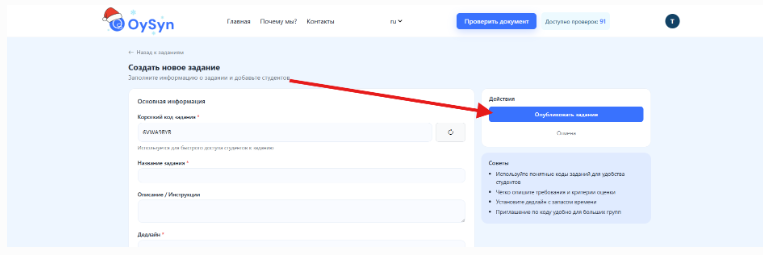
The system redirects the user to the “My assignments”page, where the created assignment appears with the published status.
Managing an assignment
Closing an assignment
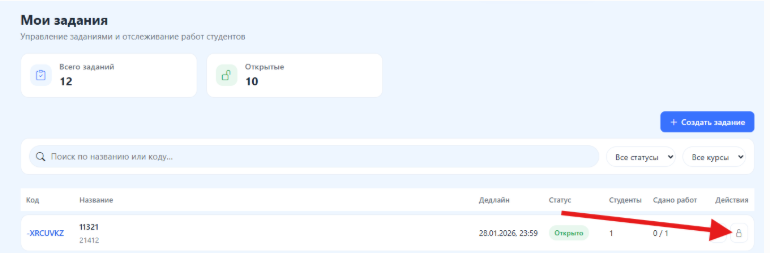
If needed, you can stop accepting work by clicking “Close session”. Unused checks are returned to the organization's balance.
Opening an assignment
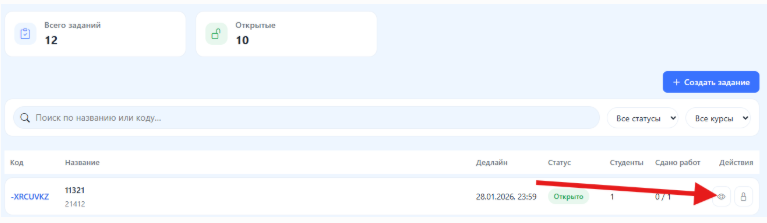
To see detailed information, click “Open assignment”.
Check settings
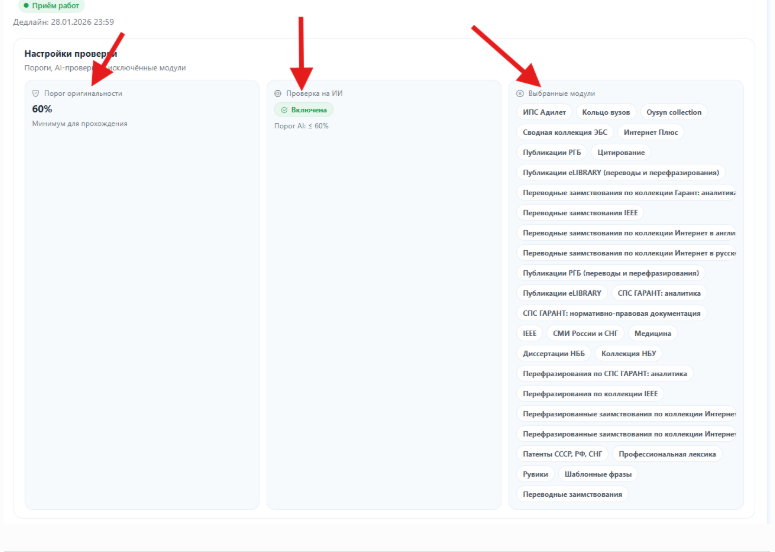
The assignment card shows:
- the set originality threshold
- the list of selected check modules
- AI check status
Student information
Below is information about students who have and have not accepted the invitation.
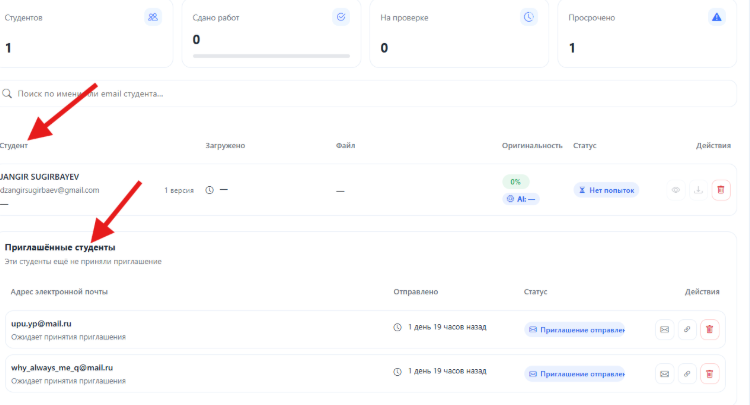
Students who have not accepted the invitation
The following actions are available:
- resend the invitation email
- copy the invitation link to share it yourself
- delete the invitation
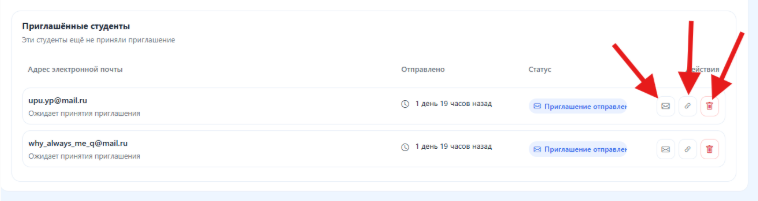
Students who have accepted the invitation
The following data is shown:
- name given at sign-up
- date the work was uploaded
- uploaded file
- originality percentage
- current status
- available actions
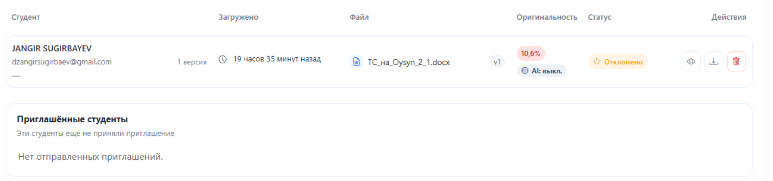
Actions on student work
The reviewer has the following functions:
- view the interactive report
- download the PDF report
- remove the student from the assignment

Interactive originality report
The report consists of three functional blocks.
1. Summary data
Contains the sections:
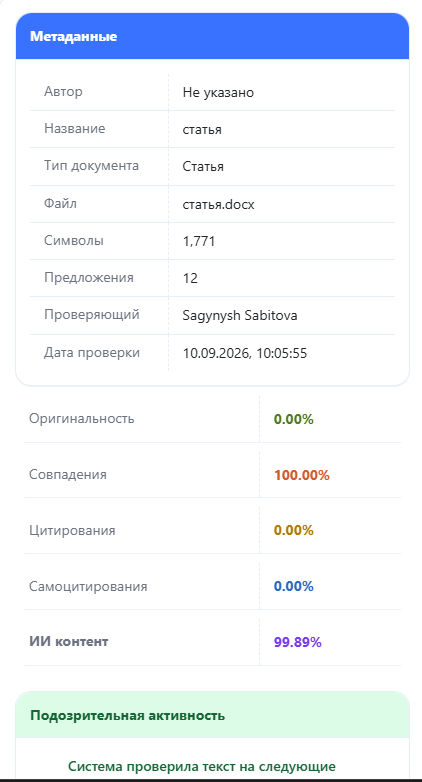
- Metadata
- Suspicious activity
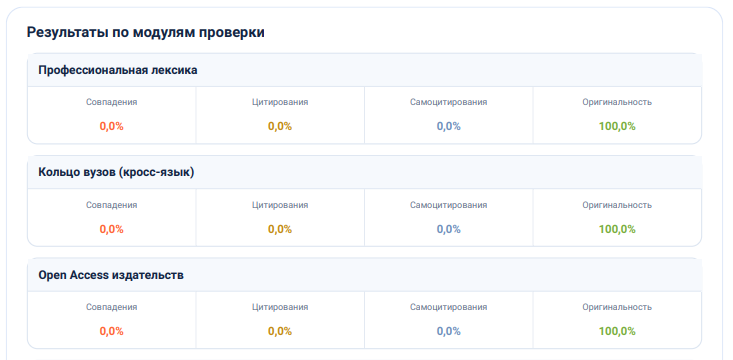
- Results by module
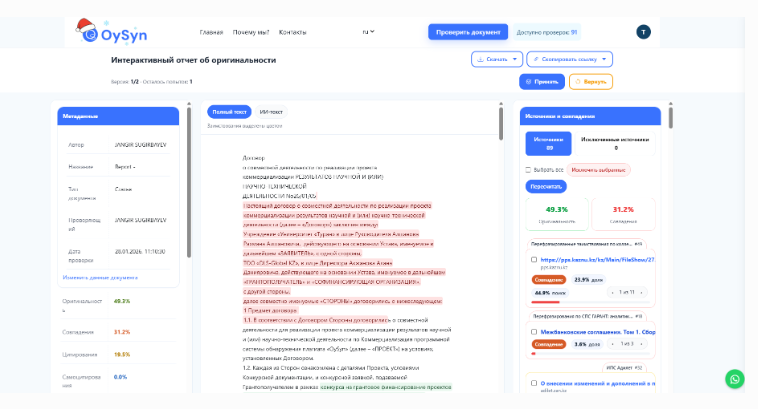
Metadata include information about the student and the main check scores: originality, matches, citations, self-citations, AI content (if the check is enabled) and suspicious activity.
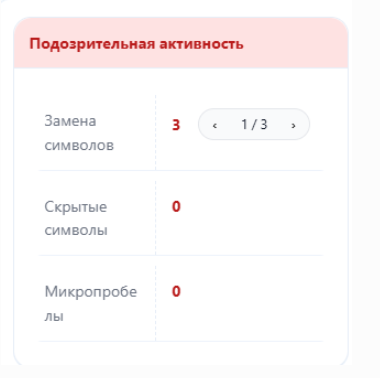
Suspicious activity shows possible attempts at technical modification of the text:
- character replacement
- hidden characters
- micro-spaces
Results by module show detailed scores for each enabled check module.
2. Text of the work
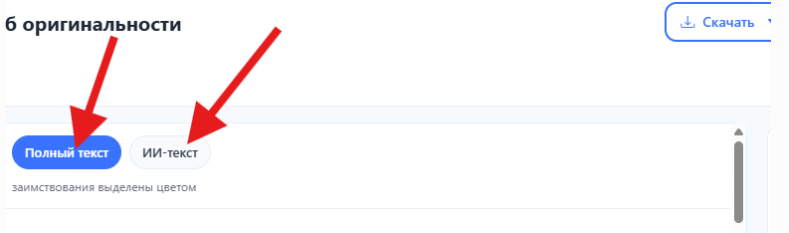
Available tabs:
- Full text — shows the text with borrowings highlighted
- AI text — shows fragments classified as AI-generated (if the module is enabled)
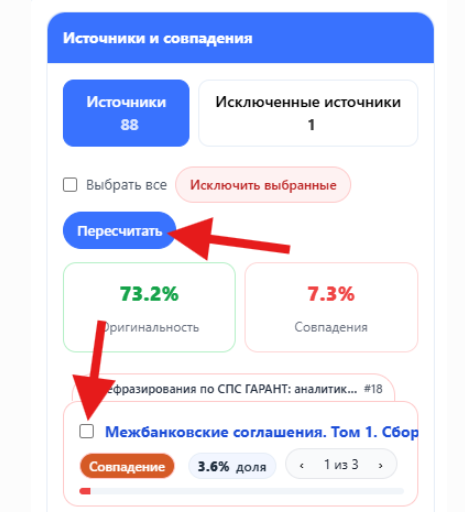
3. Sources and matches
Shows the list of sources of borrowings with the match percentage.
Individual sources can be excluded from the calculation, after which the scores are recalculated.
Deciding on the work
Based on the check results, the reviewer makes one of the decisions:
- Accept work
- Return for revision
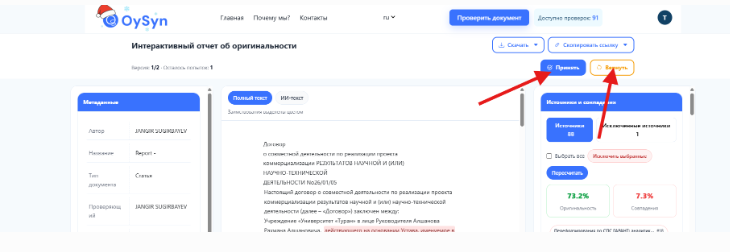
After choosing an action, a window opens for entering a comment.
Statuses after review
Work accepted
The work status changes to “Accepted”.

Work returned for revision
The status changes to “Rejected”.
If the assignment settings allow several attempts, the student can upload a corrected version of the work.
