Checking a document for originality
The procedure is the same for individuals and legal entities alike.
Before your first check, be sure to:
- fill in your Profile,
- if needed, buy more checks in the “Buy checks” section.
Document checking process
In any section of your personal account, click the “Check document” button in the top bar.
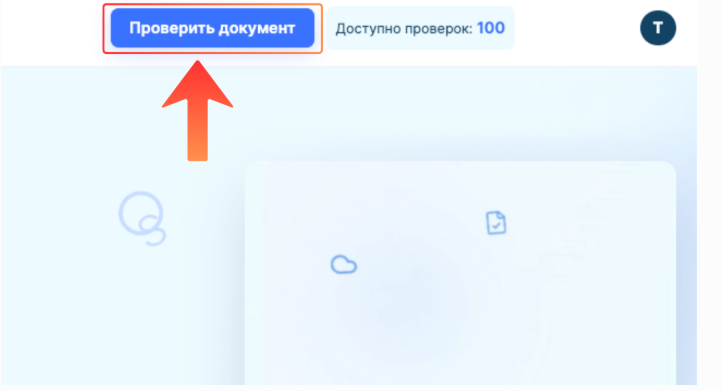
The page for checking a document for originality opens.
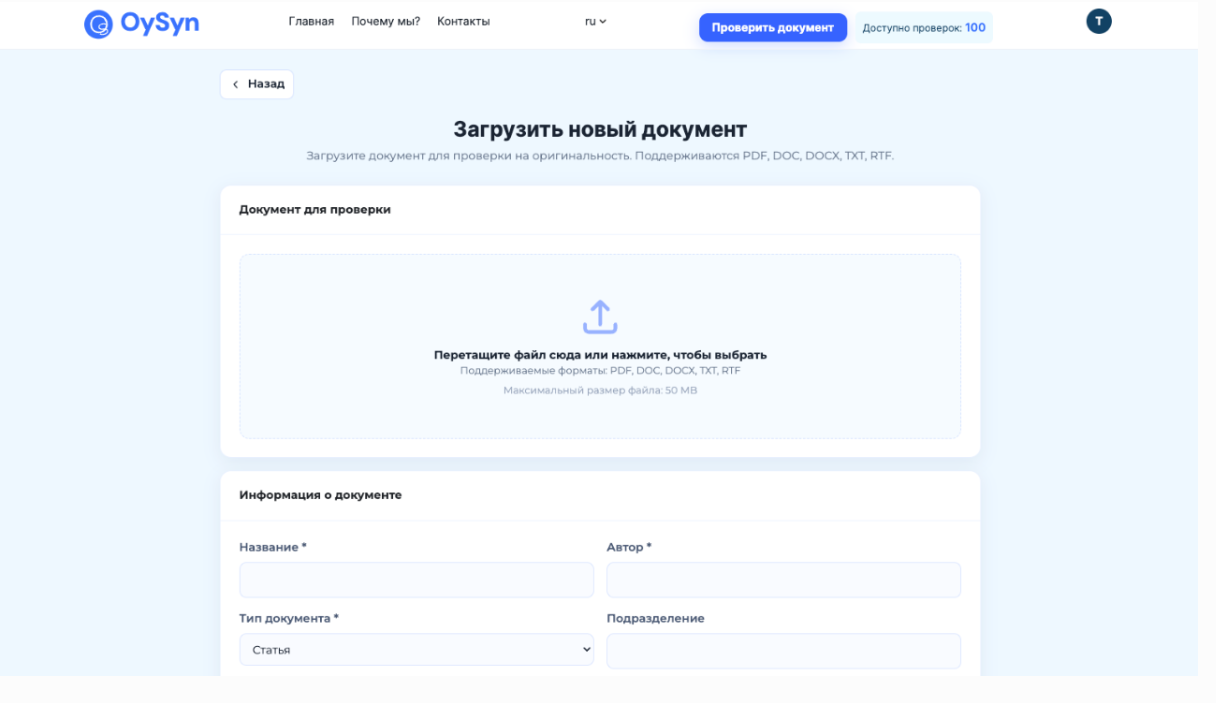
Upload a file
In the window that appears:
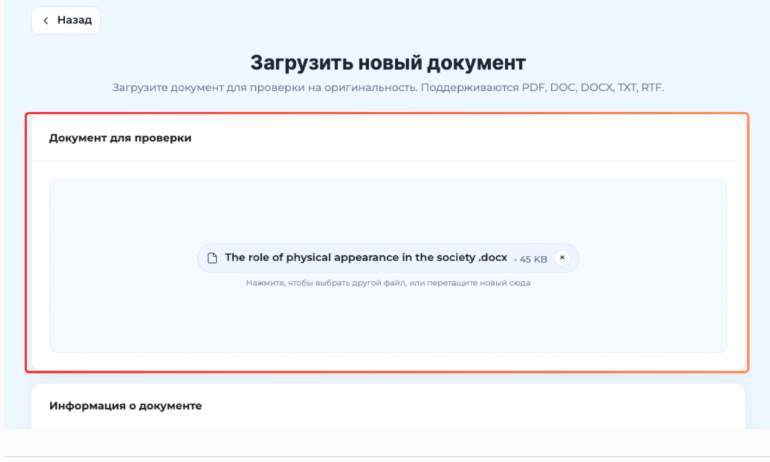
- click inside the area or drag and drop the file with your mouse;
- supported formats: PDF, DOC, DOCX, TXT, RTF.
Enter metadata
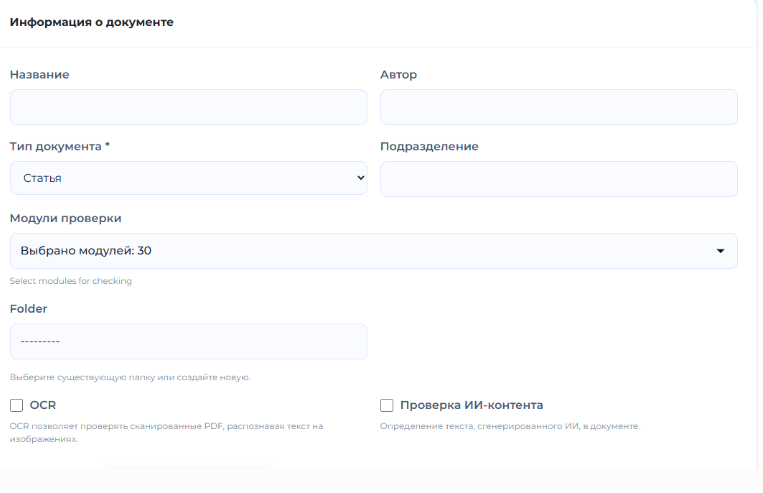
Fill in the fields:
| Field | What to enter |
| Title | any title for the work; shown in the check history |
| Author(s) | Full name or surname with initials of the author(s) |
| Document type | Article/Term paper/Thesis/Research... |
| Department | Faculty, Chair, Department (used in the report)... |
| Modules to check against | Adilet LIS — Mandatory, Oysyn Collection, NABRK Collection — Mandatory, Kazakhstan Universities Collection, Seifullin Collection, Internet Plus, Paraphrased borrowings from the Internet collection (English segment), Paraphrased borrowings from the Internet collection (Russian and Kazakh segment), Translated borrowings from the Internet collection (Russian and Kazakh segment), Translated borrowings from the Internet collection (English segment, Springer), RSL Publications, RSL Publications (translations and paraphrases), EBS Consolidated Collection, NBB Dissertations, University Ring, NBU Collection, University Ring (cross-language), GARANT legal system: regulations, GARANT legal system: analytics, Paraphrases from GARANT: analytics, Translated borrowings from the Garant: analytics collection, Patents of the USSR, RF and CIS, Medicine, IEEE (Web of Science, Scopus), Paraphrases from the IEEE collection (Web of Science, Scopus), Translated borrowings IEEE (Web of Science, Scopus), eLIBRARY Publications, eLIBRARY Publications (translations and paraphrases), PubMed, Open Access publishers, Open Access paraphrases, Open Access cross-language, PubMed paraphrases, PubMed cross-language, Crossref, Citation, Template phrases, Russian and CIS media, Translated borrowings, Ruwiki, Professional vocabulary, Prof. vocabulary: Medicine, Prof. vocabulary: Agro-industry and Biotech |
- If you uploaded a scanned PDF, tick “Enable OCR” – the system will extract the text from the images. Check that the file and data are correct → click “Upload document”.
- If you need to check how likely the text was generated by artificial intelligence, tick AI content check.
Track the status
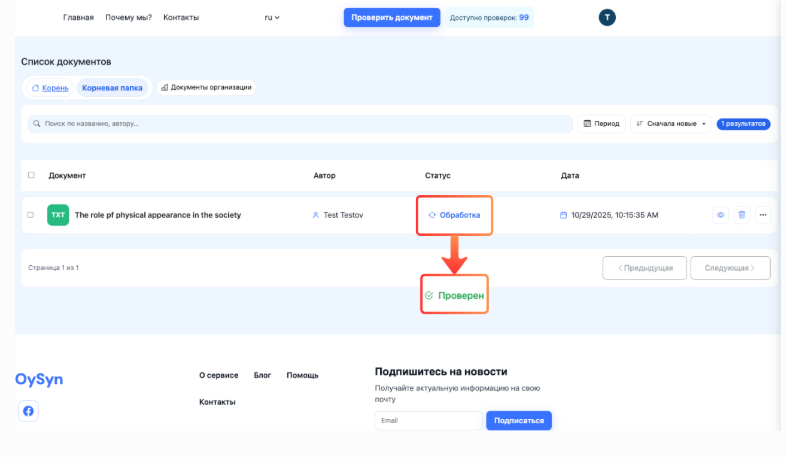
After uploading, you are taken automatically to the “Check history”.
- column Status → “Processing”;
- wait until the status changes to “Checked”.
Reports
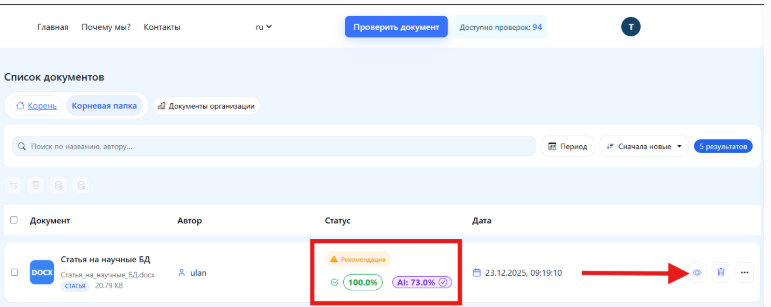
If you selected the AI content module, you will also see an AI content percentage
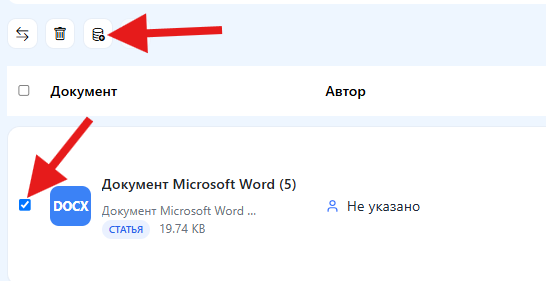
You can now also index your work: first tick the box to the left of your file, then click Add selected documents to the index
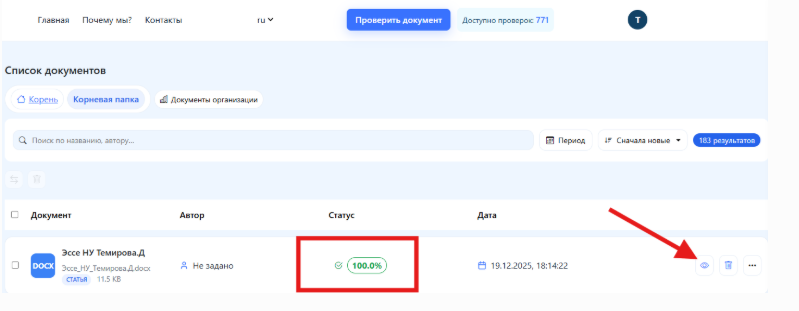
Documents you add to our index look like this

When the check is complete, click “View report”.
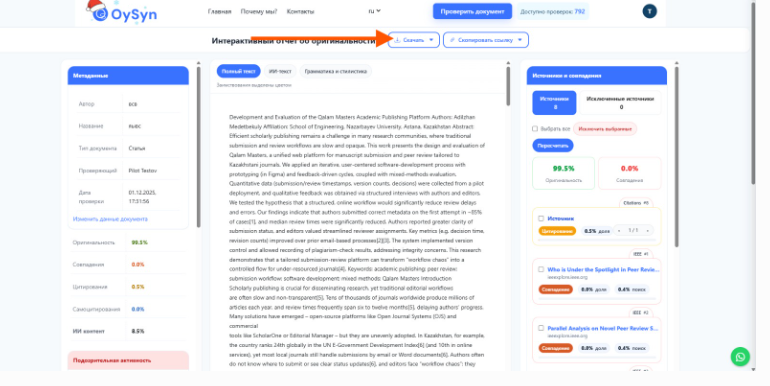
Then click the “Download”.
A dialog opens with the available report download formats
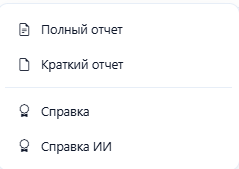
Below is a short note on each: purpose, length, key elements.
| Report type | Purpose |
| Full report | |
| Short report | |
| Certificate | |
| AI certificate |
Full report / Short check report
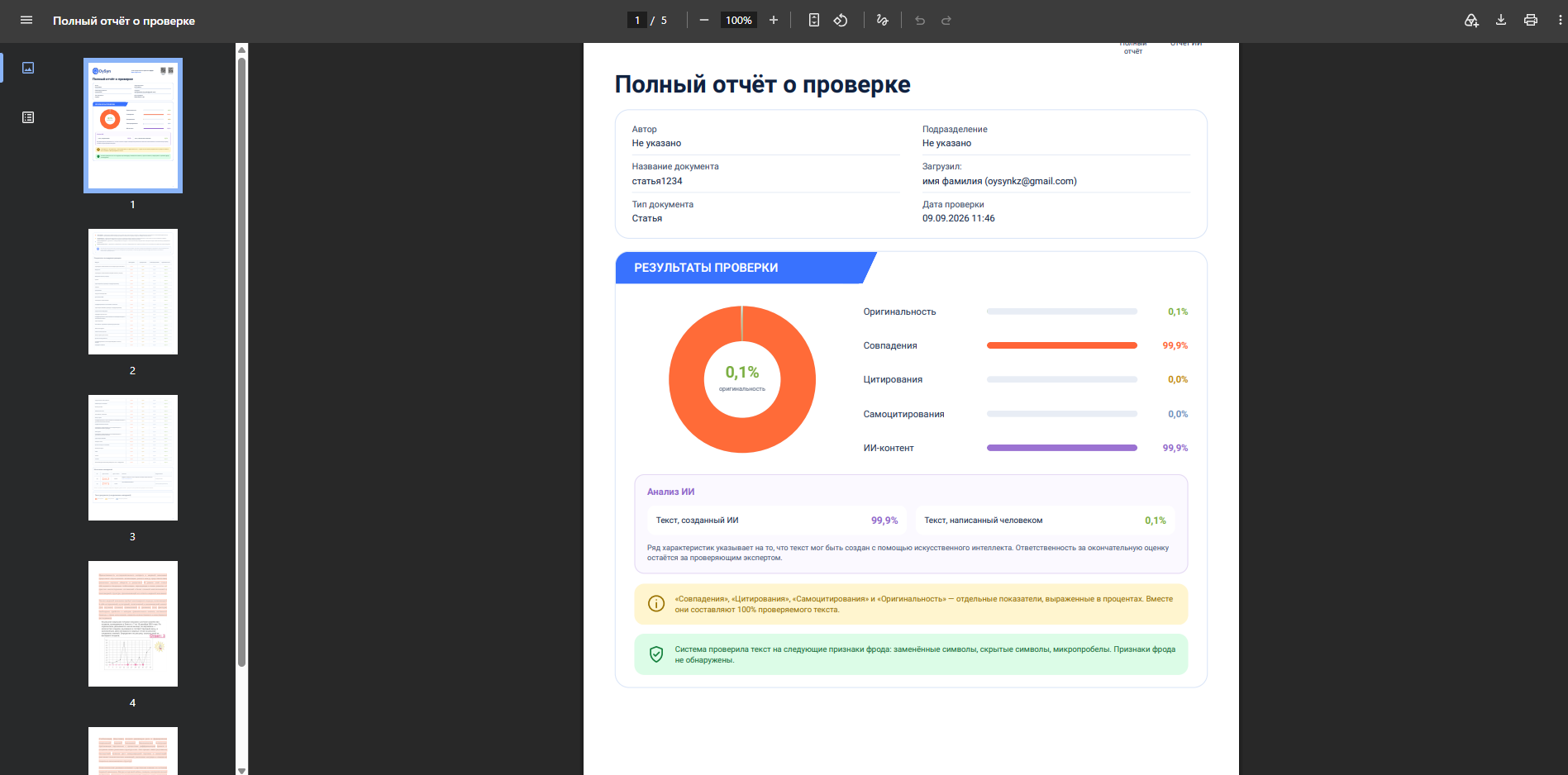
“Full report” contains the full check report, detailed results for each check module, matched sources and the document text (with matches highlighted)
“Short report” contains the check report and the check modules used
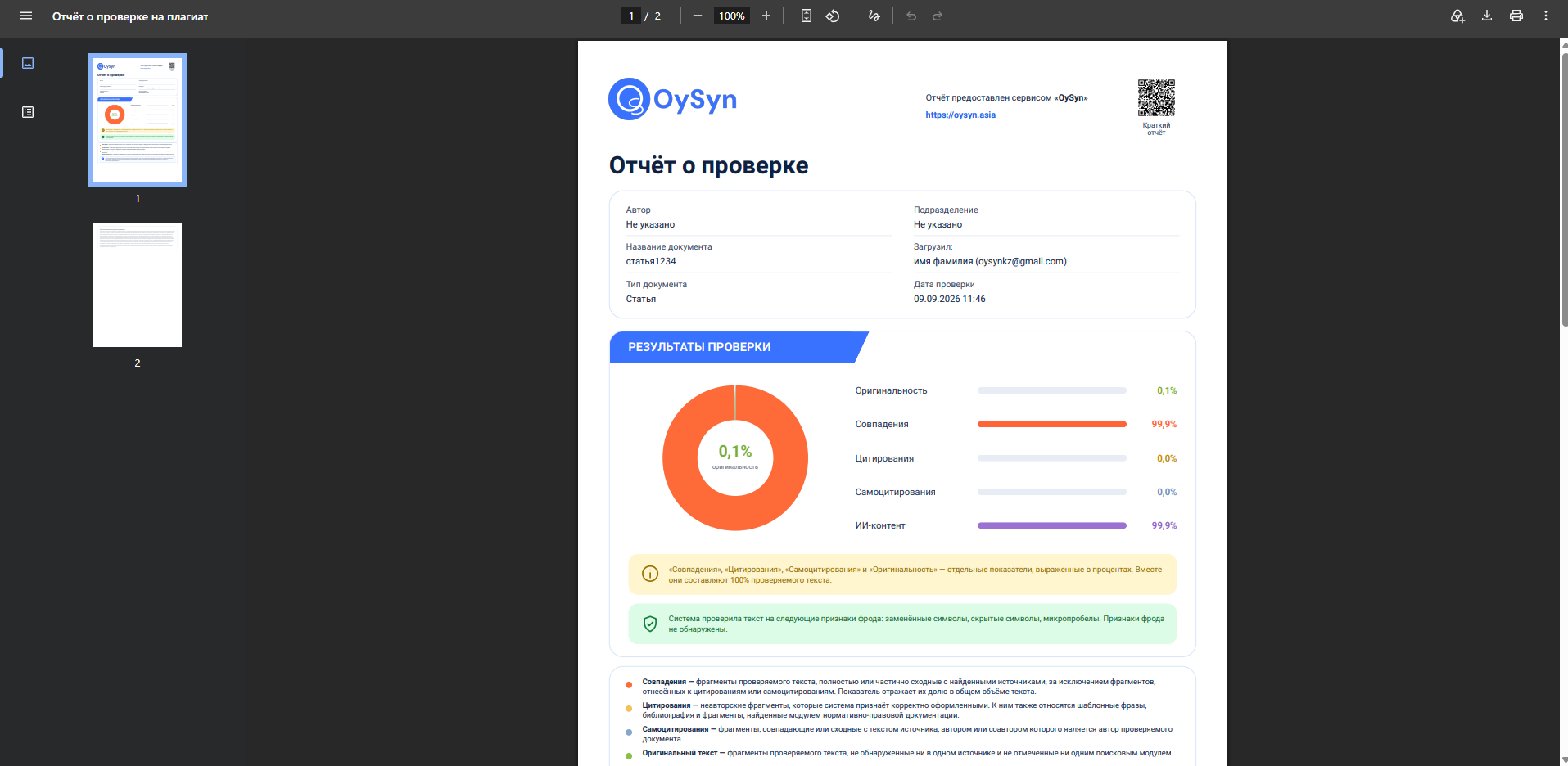
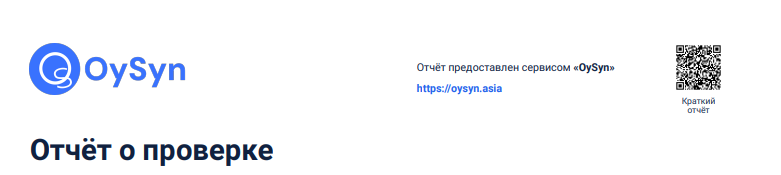
The header of these documents contains the Organization logo and QR code with a link to the certificate (to authenticate the report).
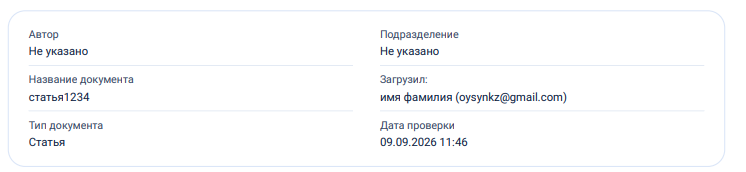
These documents also show the document details: Author, Document title, Document type, Department, Reviewer, Check date
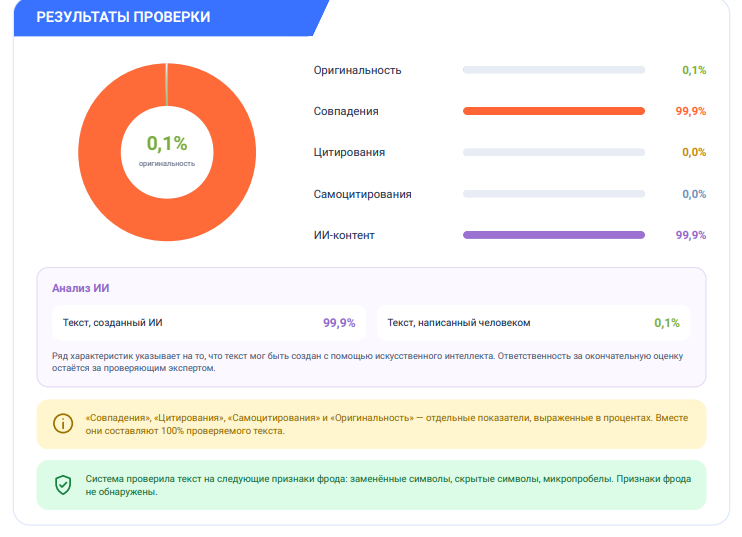
Below is a short graphical report in the form of charts. The first chart shows the percentages of original text, matches and citations. Below it, if selected, is the percentage of text that was “probably” generated by AI.
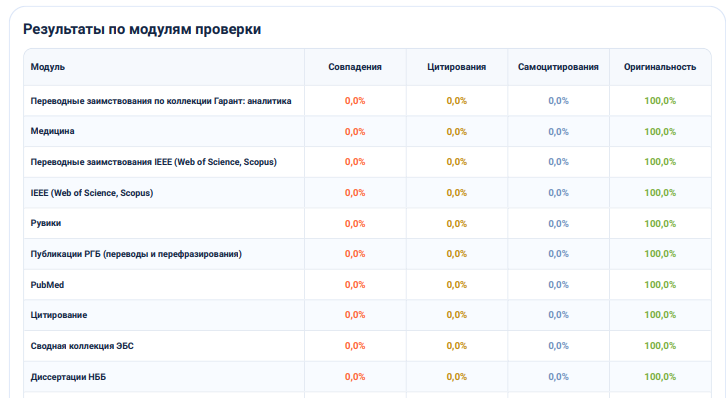
Next is a table of all modules in which matches were found.
- Matches (%) - shows the share of the document text that matches this source. For example, a value of 3 % means 3 % of the text is identical to fragments from this source.
- Citations (%) — shows what percentage of the text was cited correctly (in quotation marks or with a reference to the source).
- Self-citations (%) — shows what percentage of the text matches the author's or organization's own previously uploaded documents. Such matches are not plagiarism, but they show reuse of one's own material.
- Originality (%) — the share of text that is unique relative to this source. Calculated as 100 % − the match percentage. For example, if matches are 3 %, originality is 97 %.
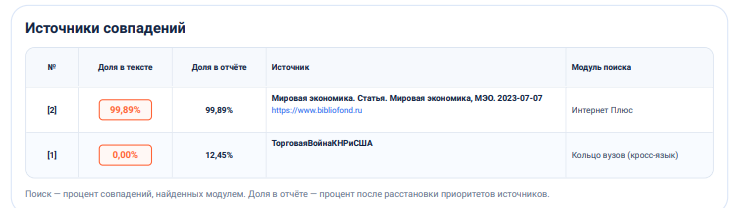
Below is the list of sources in which matches were found. The table shows the share of matches for each source, as well as its title.
- Click a source title to open and read the original material.
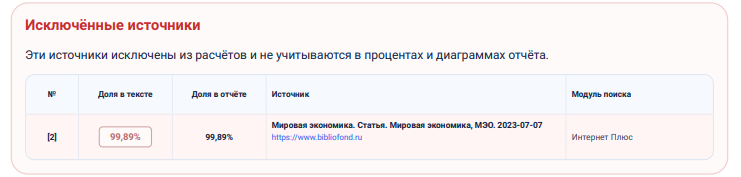
The “Excluded sources” section shows sources excluded from the check
Interactive originality report
Opens in a new tab, is not downloaded.
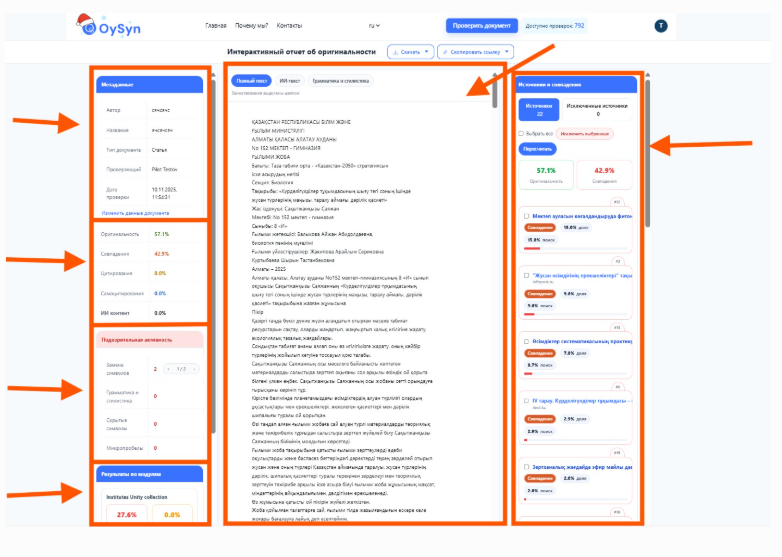
Page layout:
- Left panel
– document metadata;
– check results in figures (originality, matches, citations, AI content);
– Suspicious activity (Character replacement, grammar and style, hidden characters, Micro-spaces);
– detailed results for each module. - Central panel
– the full text of your work;
– color highlighting: all matches are highlighted in color;
– hovering over a highlighted fragment shows a card with a link to the source; follow it to view the source of the borrowing. - Right panel
– Sources and matches;
– excluded sources;
– The Recalculate button excludes the sources you selected and recalculates the originality percentage.
Original text
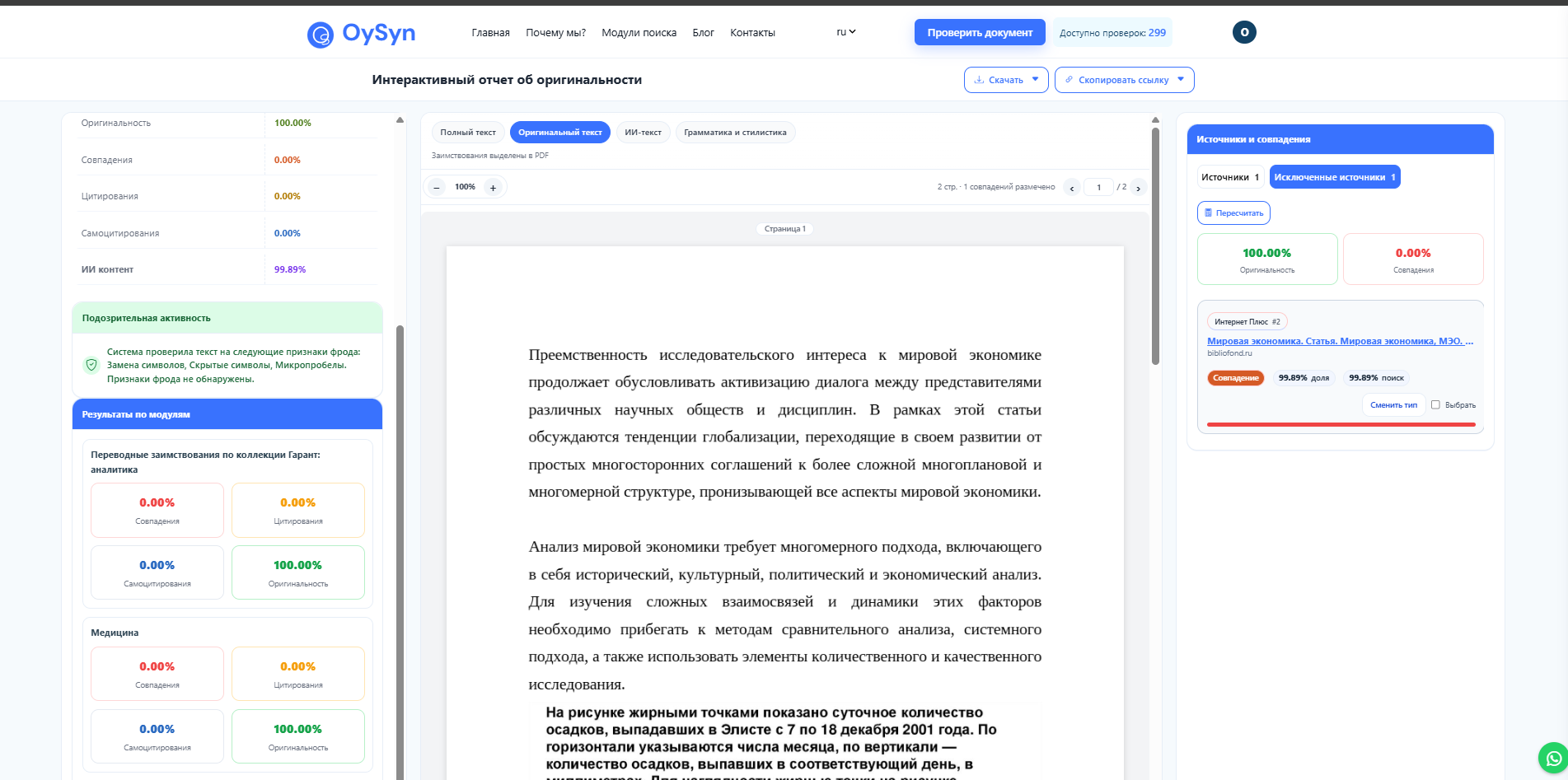
Page layout:
- Left panel
– document metadata;
– check results in figures (originality, matches, citations, AI content);
– Suspicious activity (Character replacement, grammar and style, hidden characters, Micro-spaces);
– detailed results for each module. - Central panel
– the full original text of your work;
– color highlighting: all matches are highlighted in color;
– hovering over a highlighted fragment shows a card with a link to the source; follow it to view the source of the borrowing. - Right panel
– Sources and matches;
– excluded sources;
– The Recalculate button excludes the sources you selected and recalculates the originality percentage.