Employee personal account
Signing in to your personal account
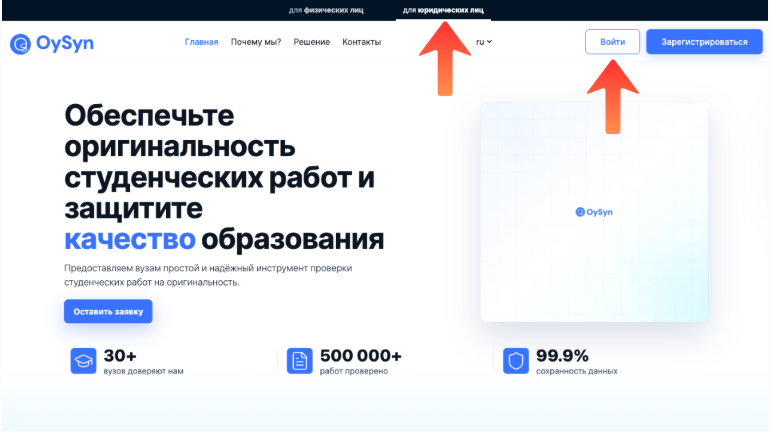
On the website OySyn.asia select the section “For legal entities” and click “Sign in”.
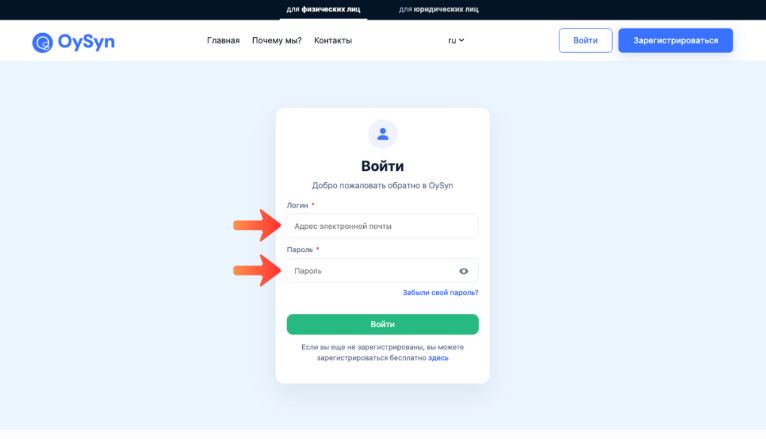
Enter email address and passwordprovided by the administrator or used when signing up.
Click “Sign in”.
Note
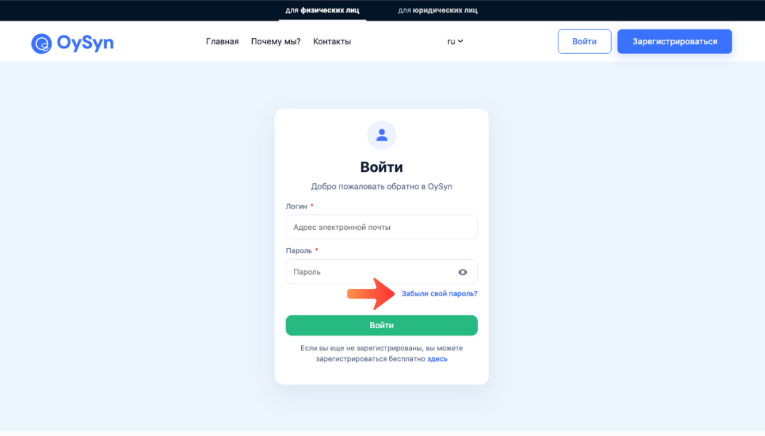
If you don't remember your password, click “Forgot your password?”.
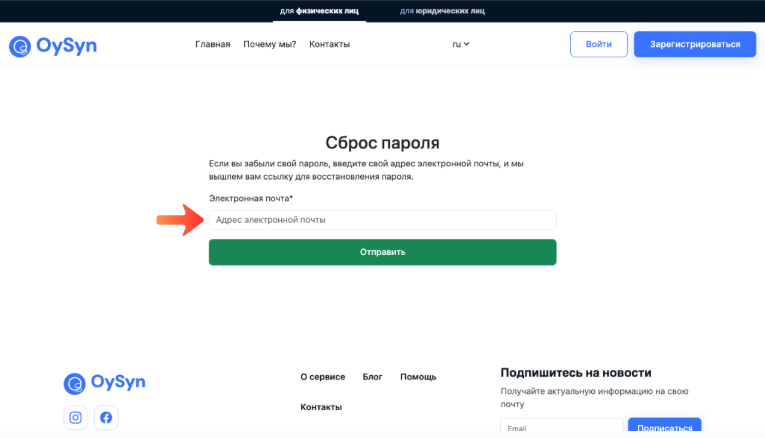
Enter email addressyou used when signing up, and follow the recovery instructions.
Working in your personal account
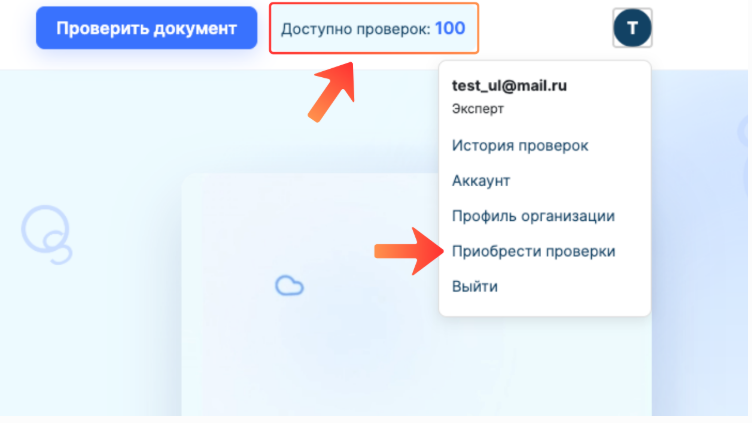
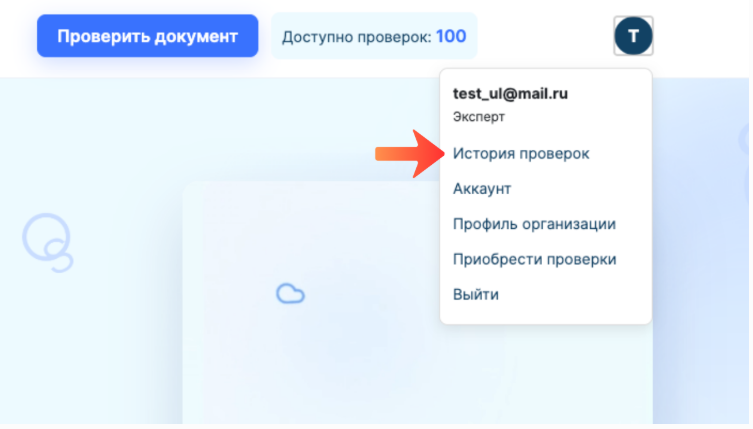
Click the avatar in the top right corner — this opens the menu.
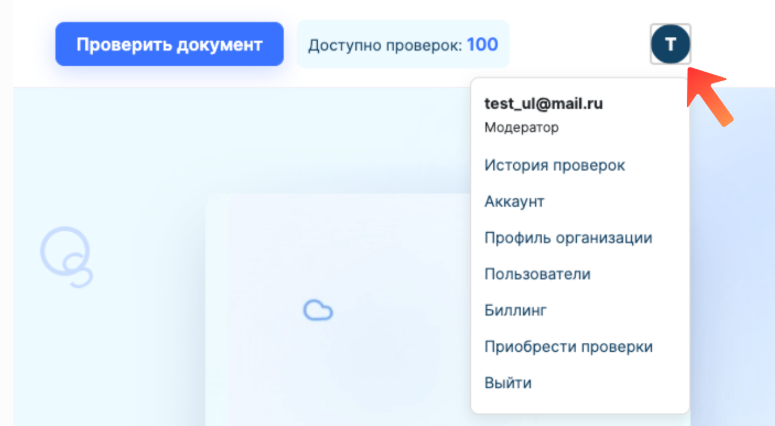
“Account” section
Profile (editing personal data)
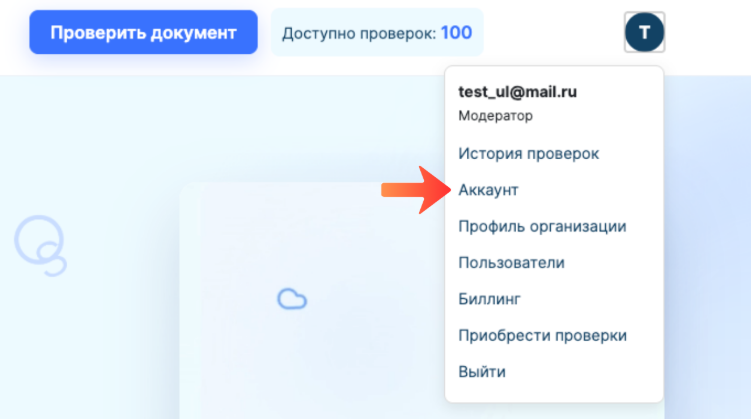
Select “Account”.
Select the section “Profile” → Click “Edit”.
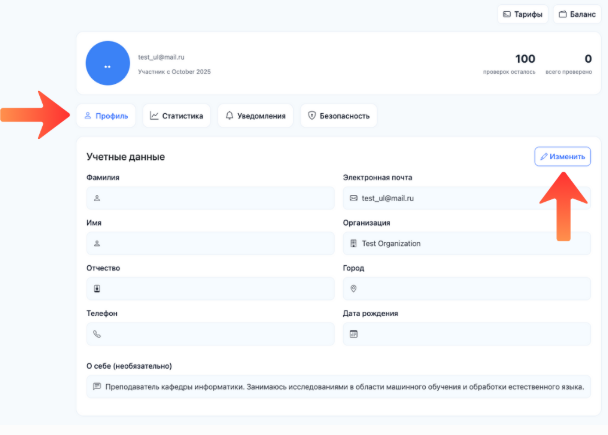
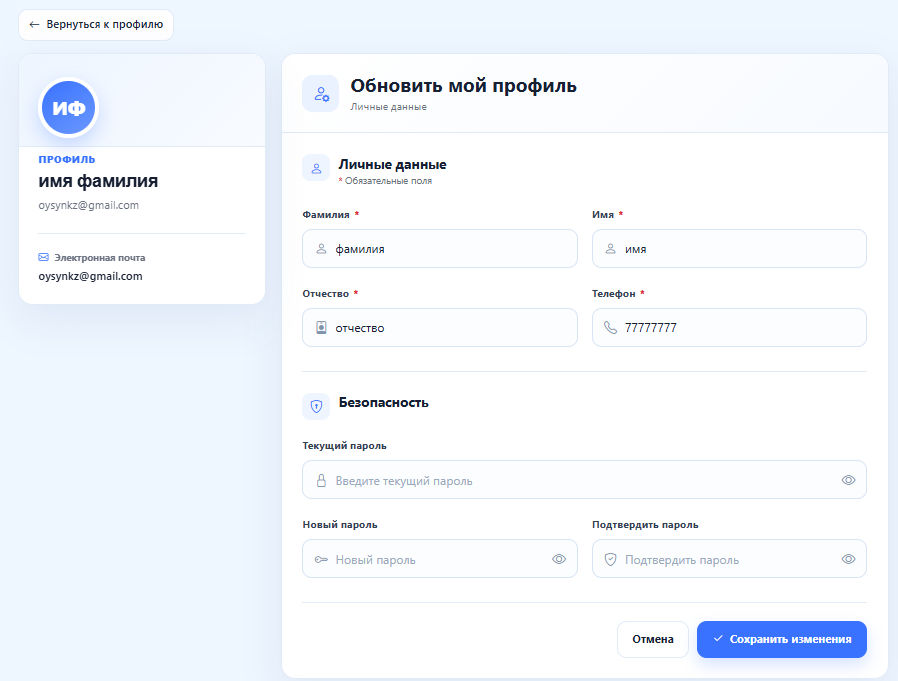
Fill in the fields: First name, Last name, Patronymic, IIN, city, address, postal code, phone, date of birth, a short bio.
Click “Edit” to save.
Statistics
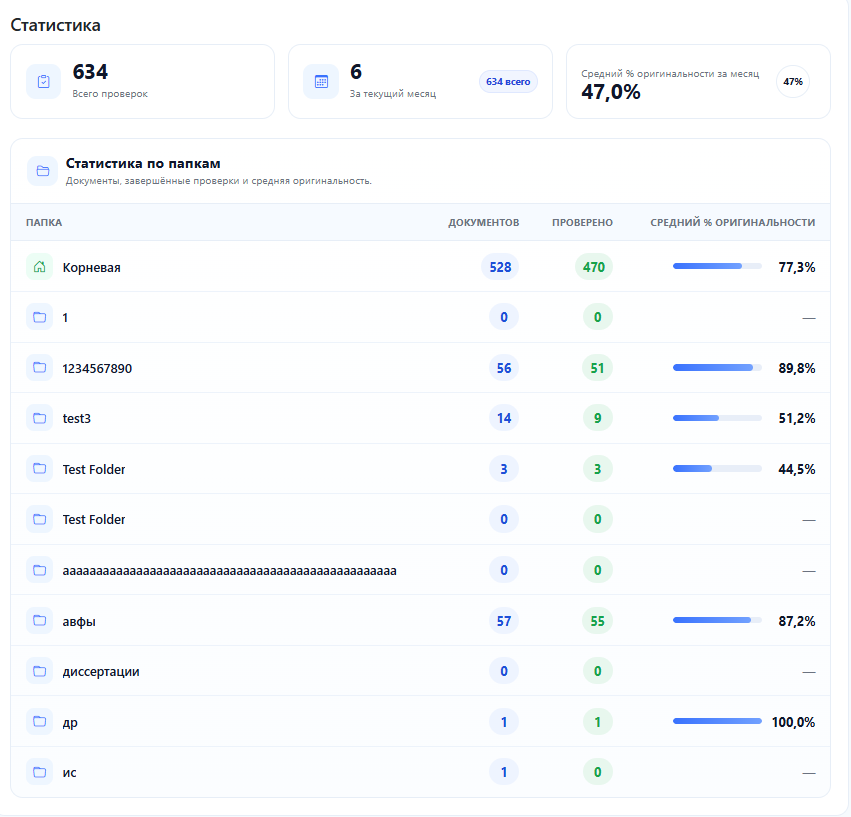
Select “Account” → section “Statistics”.
In this section you can see the total number of checks, checks this month and average originality percentage.
Notifications
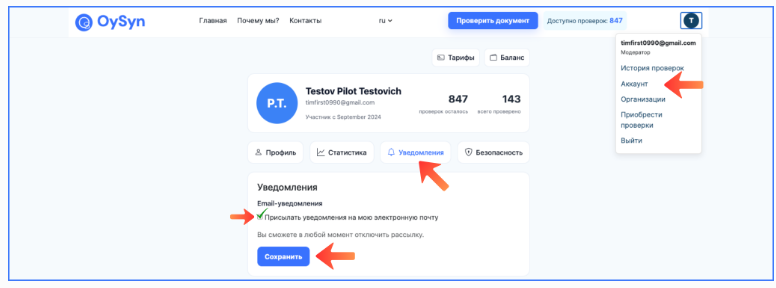
Go to “Account” → “Notifications”.
Turn on email notifications by ticking “Send notifications to my email”.
Click “Save”.
Security
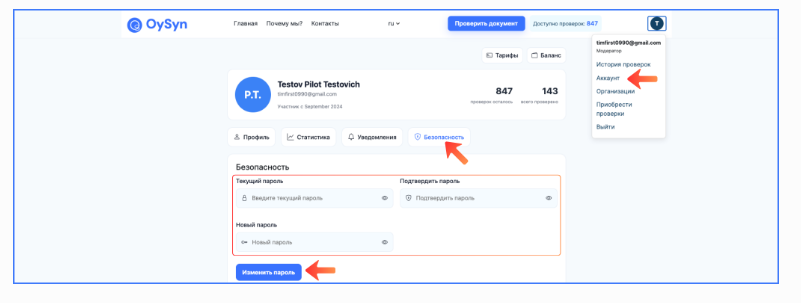
Open “Account” → “Security”.
Enter current password, new password and confirm it.
Click “Change password”.
“Organization profile” section
Go to the section “Organization profile”.
In the section “Organization profile” you can see all current information about the organization your account belongs to.
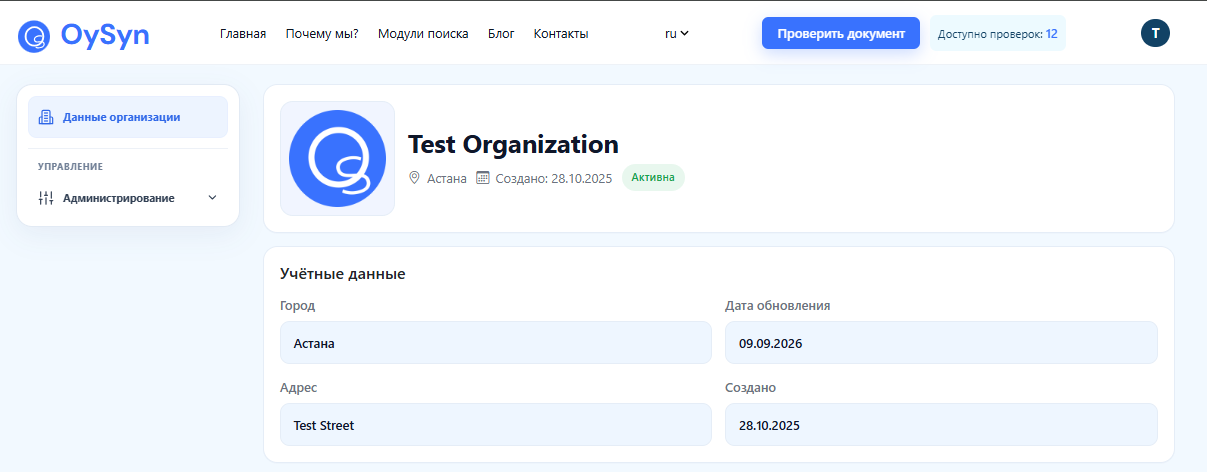
In the section “Administration” you can view the minimum originality and AI content percentage by document type
“Buy checks” section
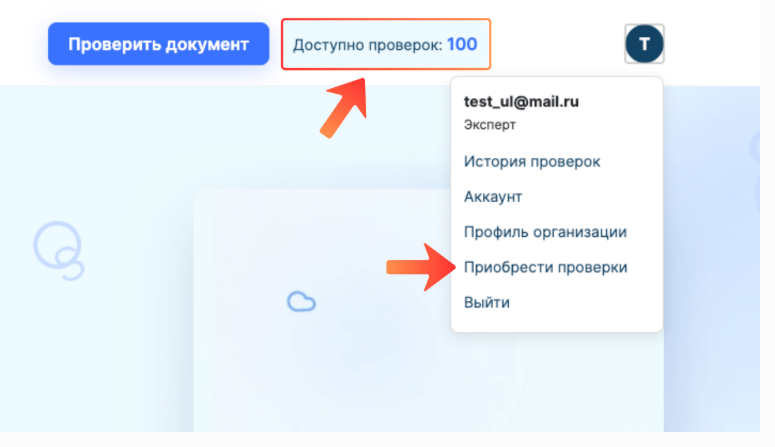
The number of available checks is shown at the top: “Checks available: #”.
If you have run out of checks, first ask your organization's administrator to allocate more checks.
If you need to buy more checks, go to the section “Buy checks” section.
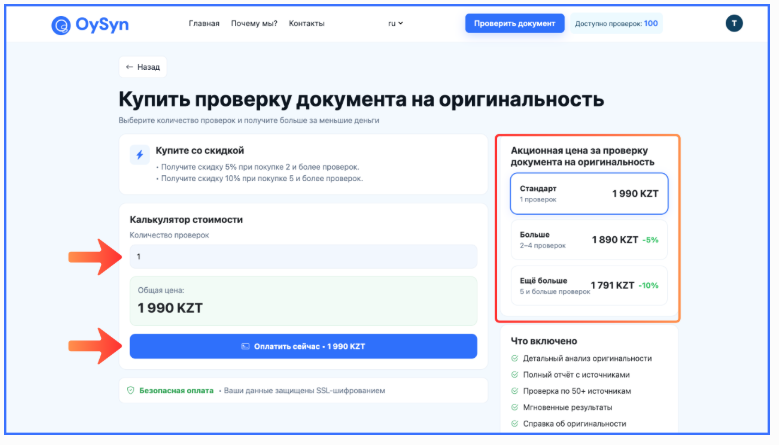
On the right you can see the price per check depending on the volume. In the calculator, enter the number of checks you need.
Click “Pay now”.
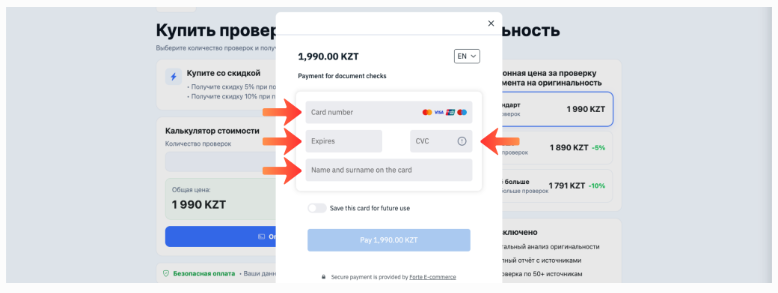
Enter your card details: number, expiry date, CVV, first and last name in Latin letters. Click “Pay”.
“Check history” section
Go to the section “Check history”.
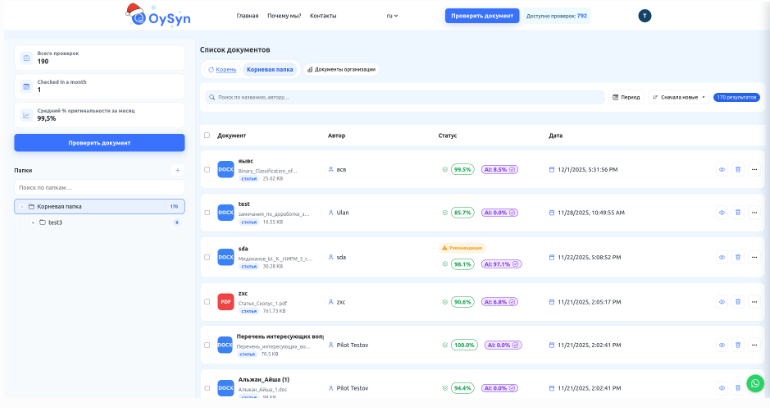
This section shows the full list of checked documents.
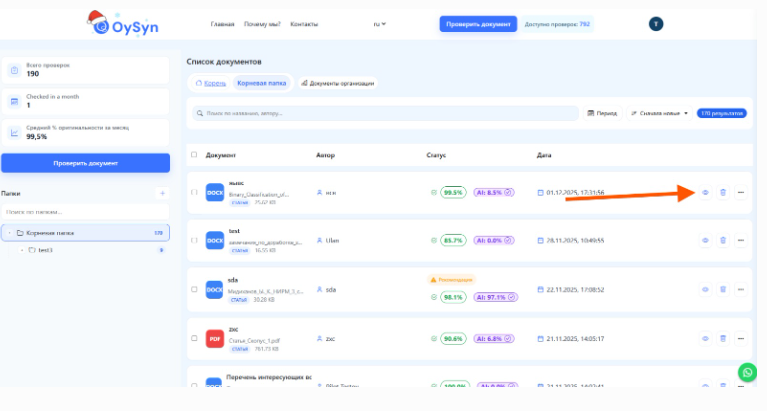
Detailed report: click “View report”.
The report contains all the check data.
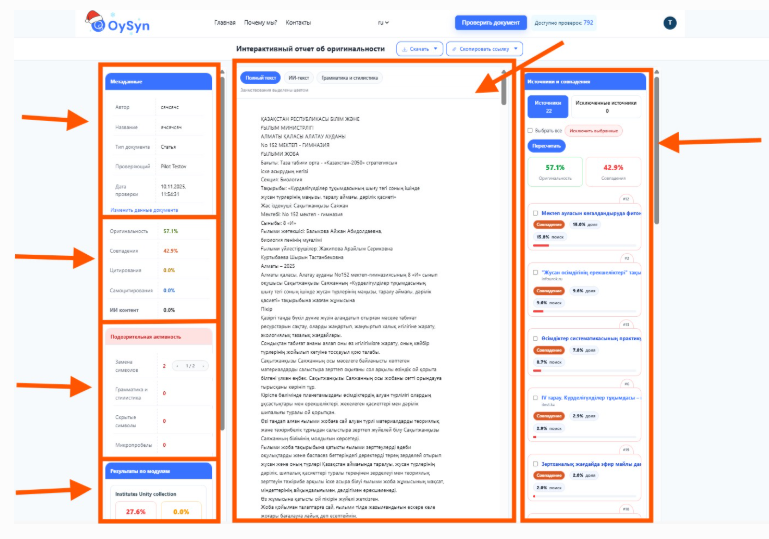
Page layout:
- Left panel
– document metadata;
– check results in figures (originality, matches, citations, AI content);
– Suspicious activity (Character replacement, grammar and style, hidden characters, Micro-spaces);
– detailed results for each module. - Central panel
– the full text of your work;
– color highlighting: all matches are highlighted in color;
– hovering over a highlighted fragment shows a card with a link to the source; follow it to view the source of the borrowing. - Right panel
– Sources and matches;
– excluded sources;
– The Recalculate button excludes the sources you selected and recalculates the originality percentage.
Original text
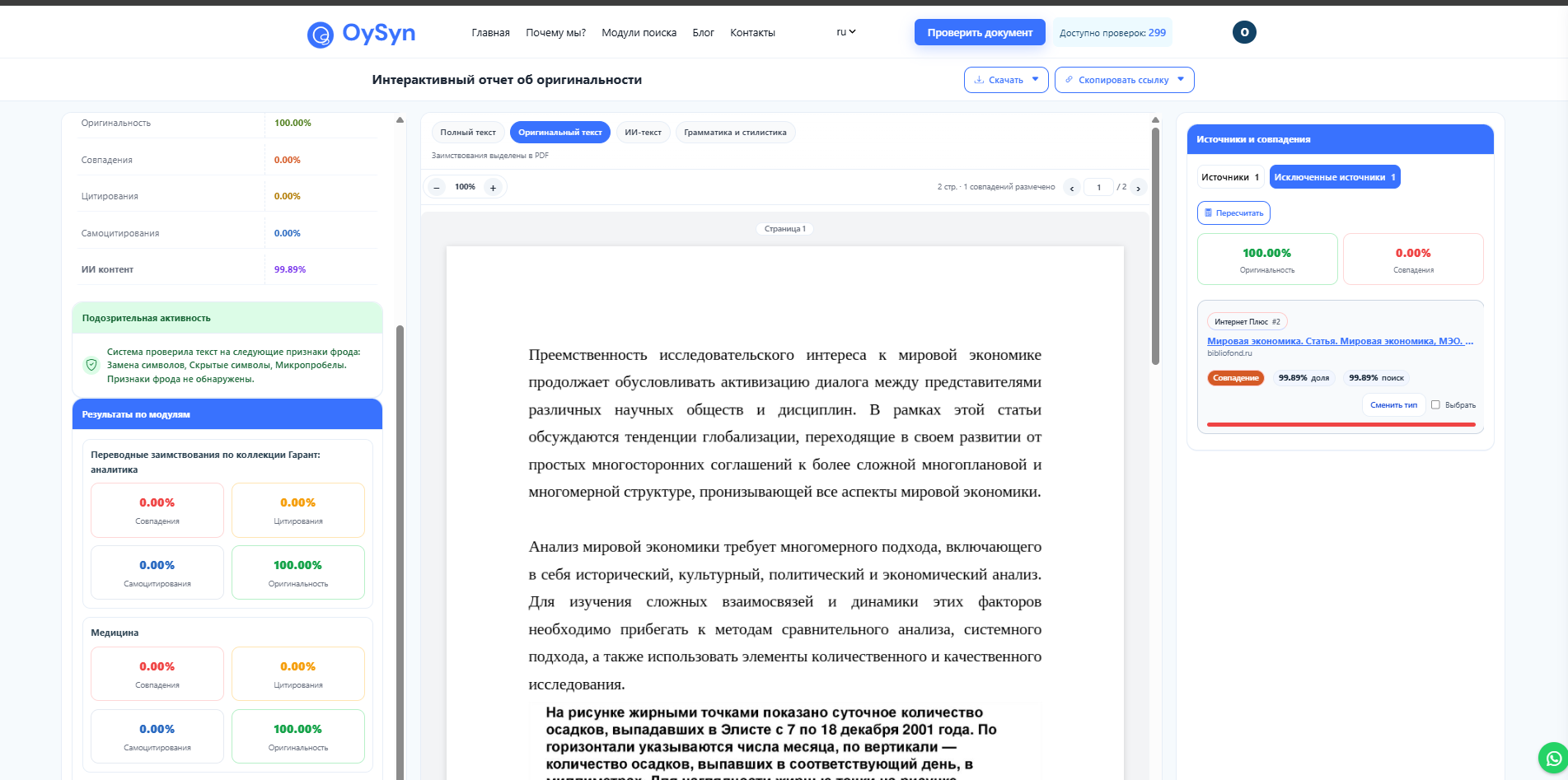
Page layout:
- Left panel
– document metadata;
– check results in figures (originality, matches, citations, AI content);
– Suspicious activity (Character replacement, grammar and style, hidden characters, Micro-spaces);
– detailed results for each module. - Central panel
– the full original text of your work;
– color highlighting: all matches are highlighted in color;
– hovering over a highlighted fragment shows a card with a link to the source; follow it to view the source of the borrowing. - Right panel
– Sources and matches;
– excluded sources;
– The Recalculate button excludes the sources you selected and recalculates the originality percentage.