Assignment module: student
“Student assignment” module
Joining an assignment
When a reviewer creates an assignment, the student receives an invitation at the specified email address.

After following the link in the email, click “Join”.
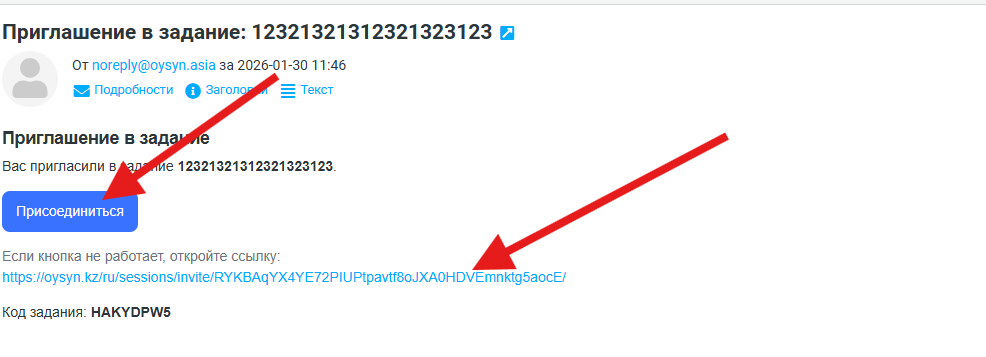
The user is then redirected to the page with the invitation to complete the assignment.
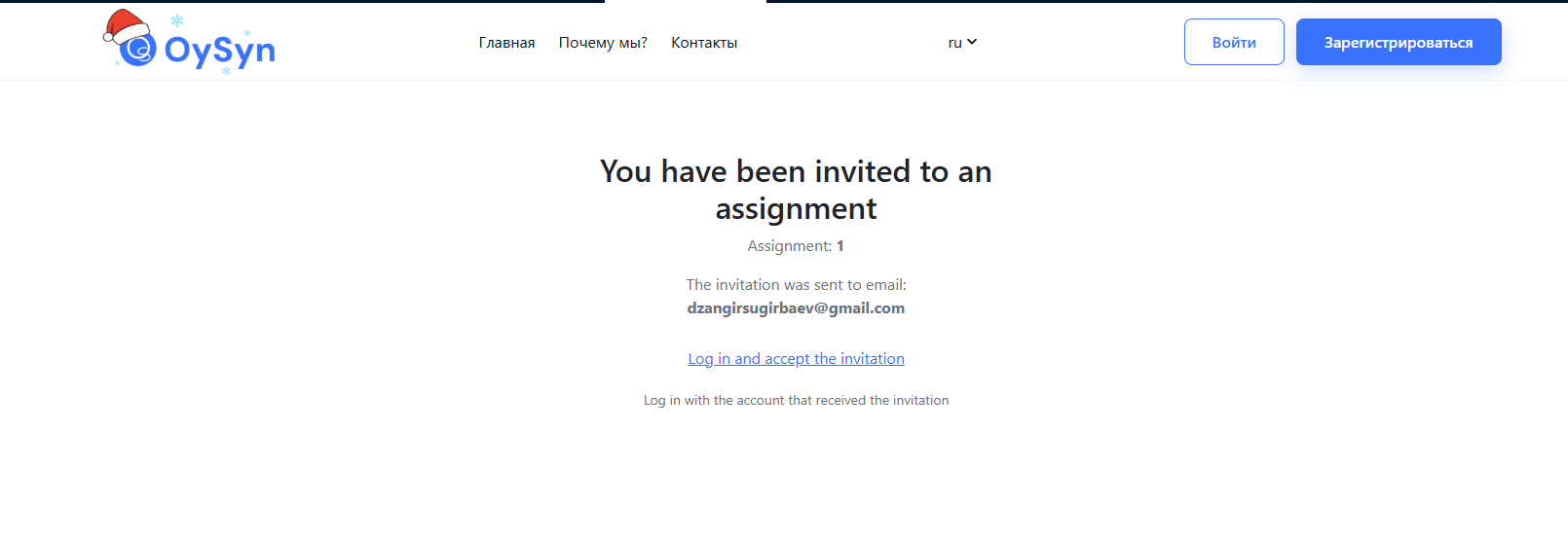
To confirm participation, click “Sign in and accept the invitation”.
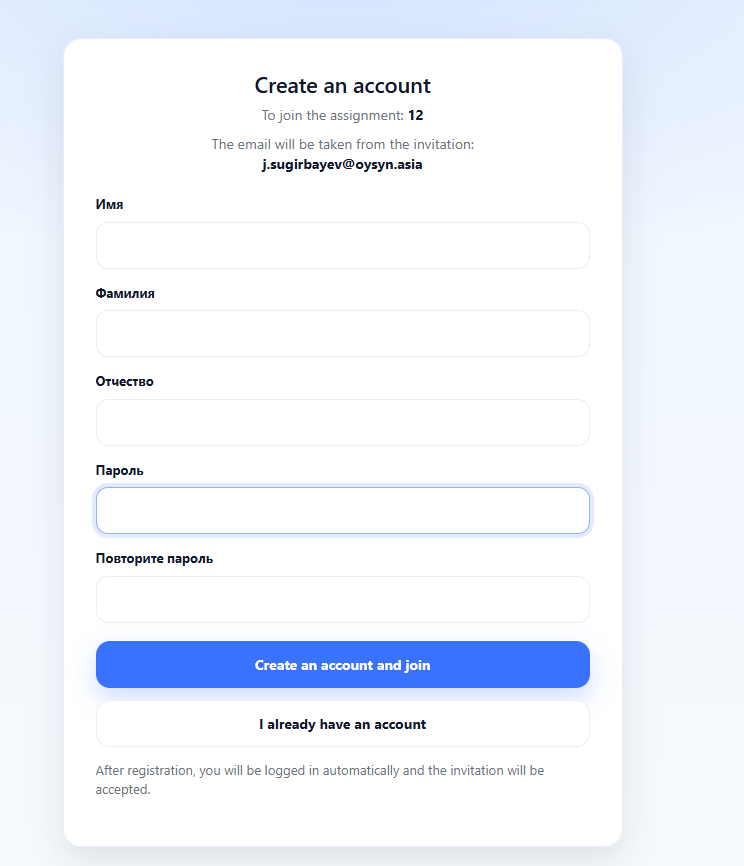
The student account creation form then opens, where you need to enter
- first name
- last name
- patronymic
- password (with confirmation)
Then click “Create account and join”.
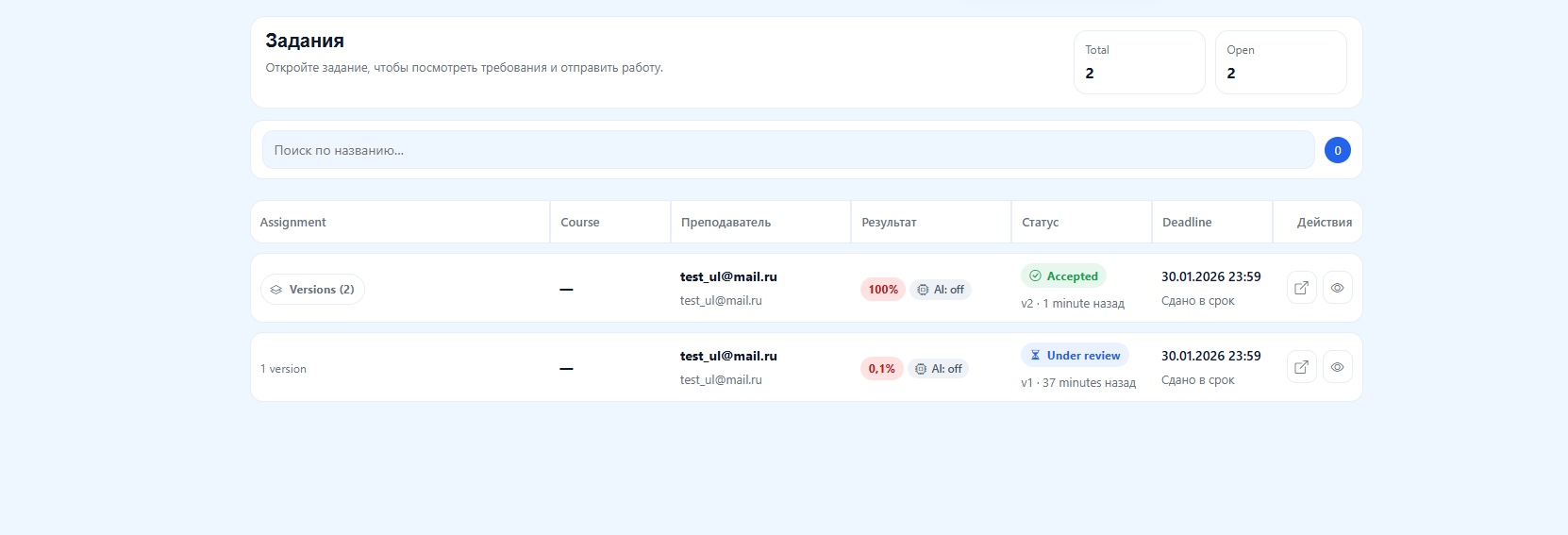
Assignments page
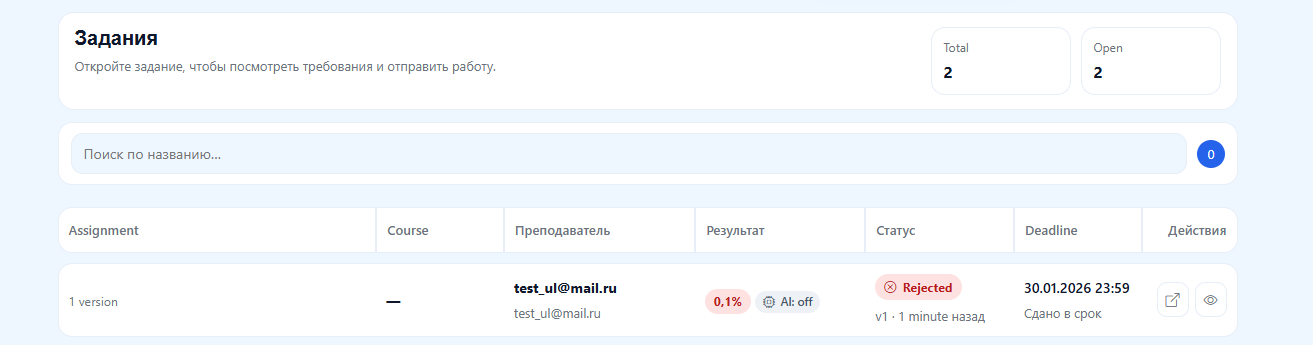
After signing in, a page with the list of assigned tasks opens.
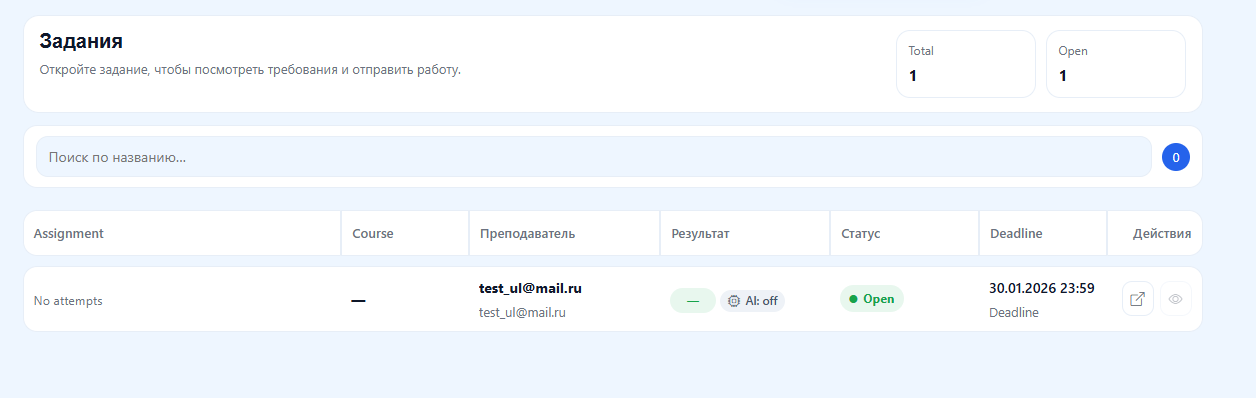
This page shows the following information
- Teacher — the user who created the assignment
- Result — whether an AI check was performed
- Status — current completion status of the assignment
- Deadline — the set due date
- Actions — access to the assignment and the check results
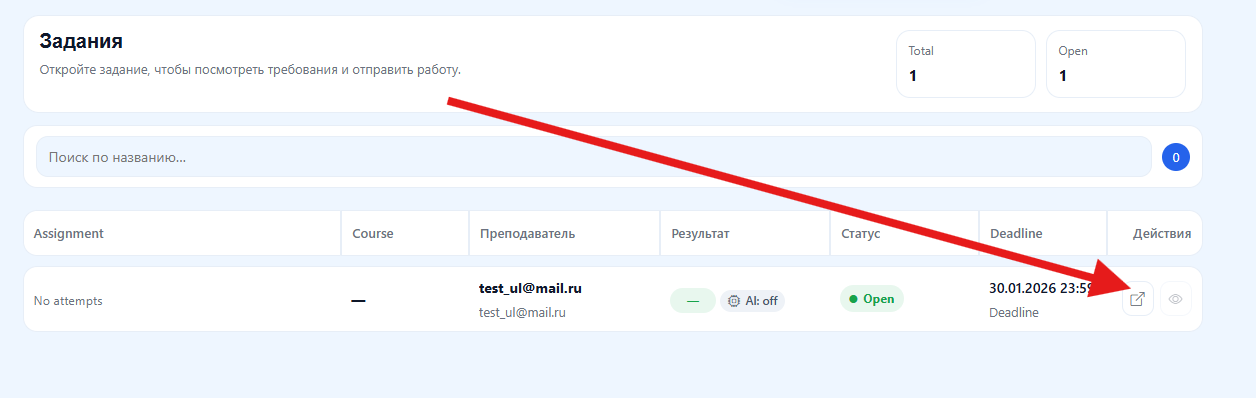
To go to an assignment, click “Open assignment”.
Assignment details
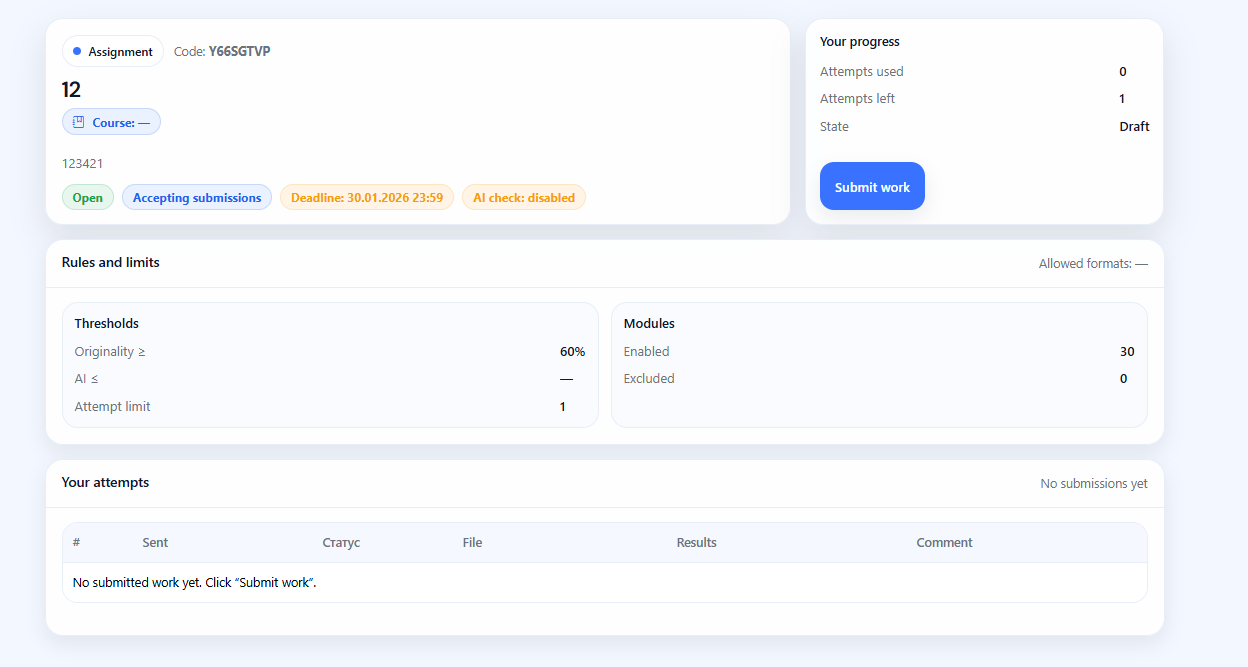
When you open an assignment, a page with detailed information opens, containing the sections
- Purpose
- Your progress
- Rules and limits
- Your attempts
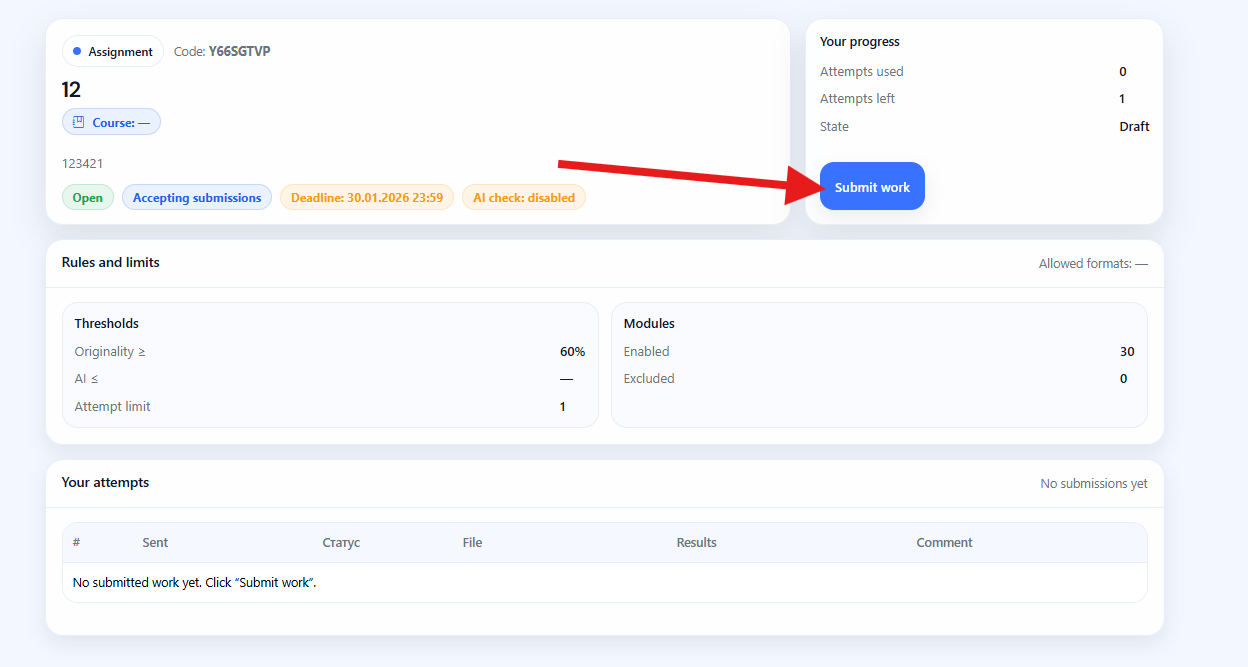
To submit your completed work, click “Submit work”.
The submission window opens; it has three blocks
- Student information
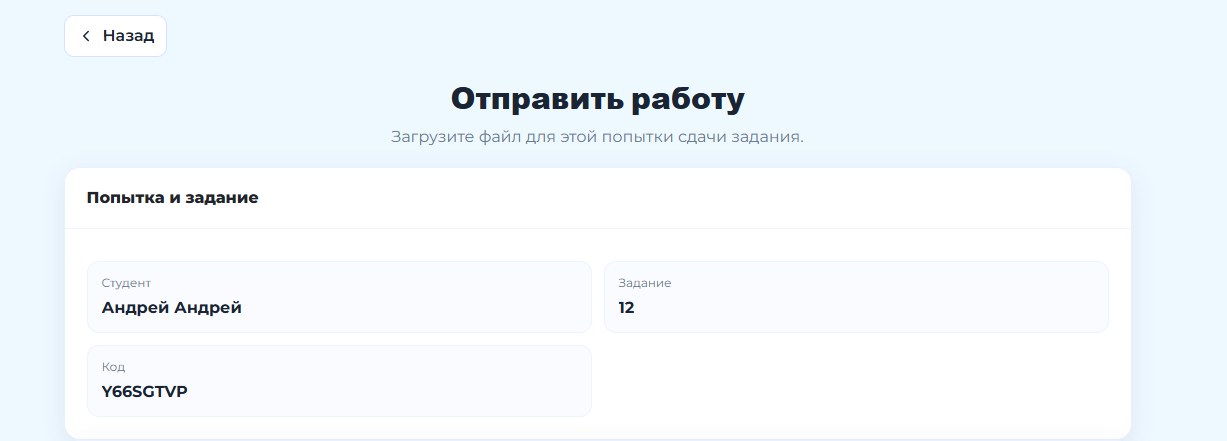
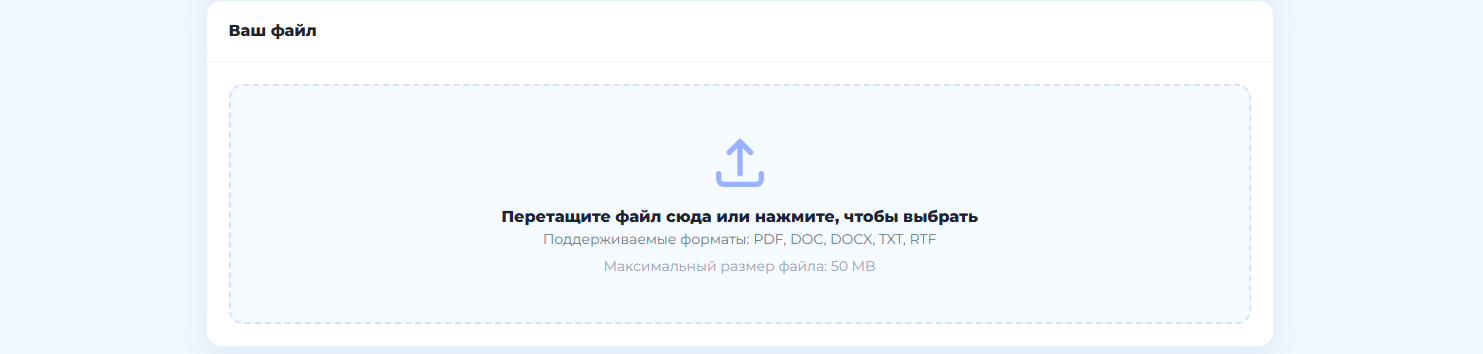
- File upload
You can drag the file into the upload area or choose it manually from the list of available files.
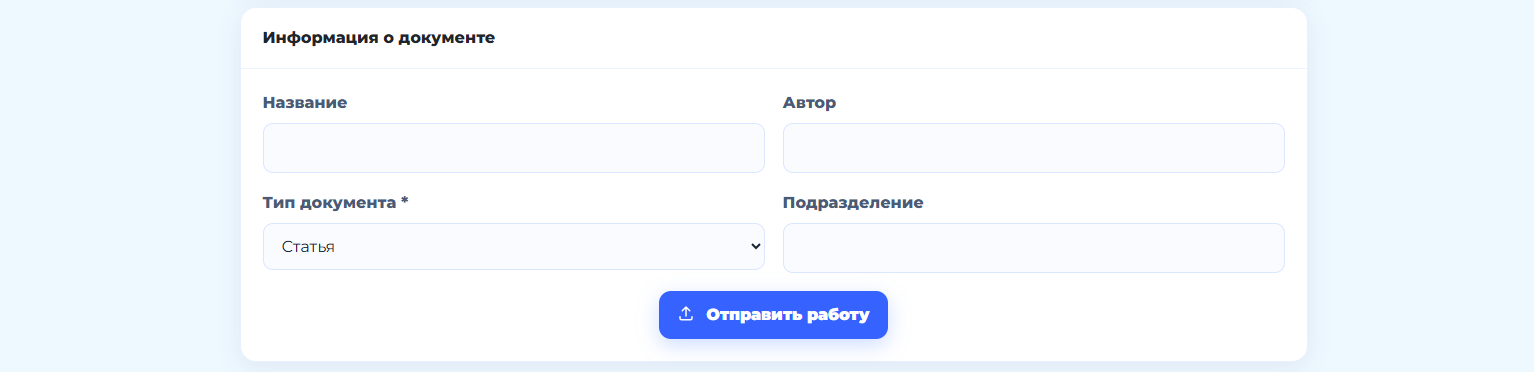
- File information
Additional details filled in by the student.
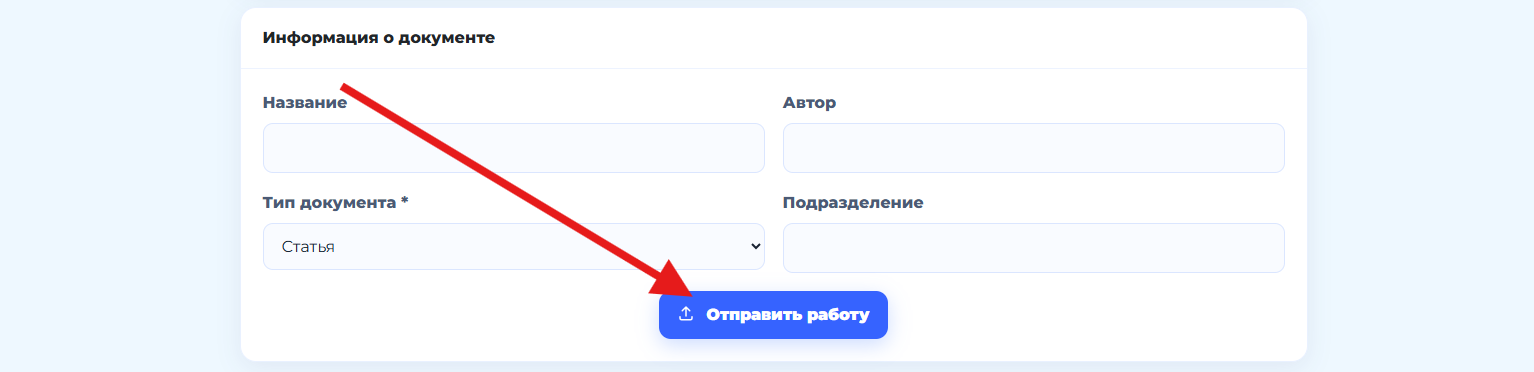
After filling in all the details, click “Submit work”.
The system redirects the user back to the “Assignments” page, where updated results, status and deadline information appear after the teacher's review.
For a detailed analysis of the results, click “Interactive report”.

Interactive originality report
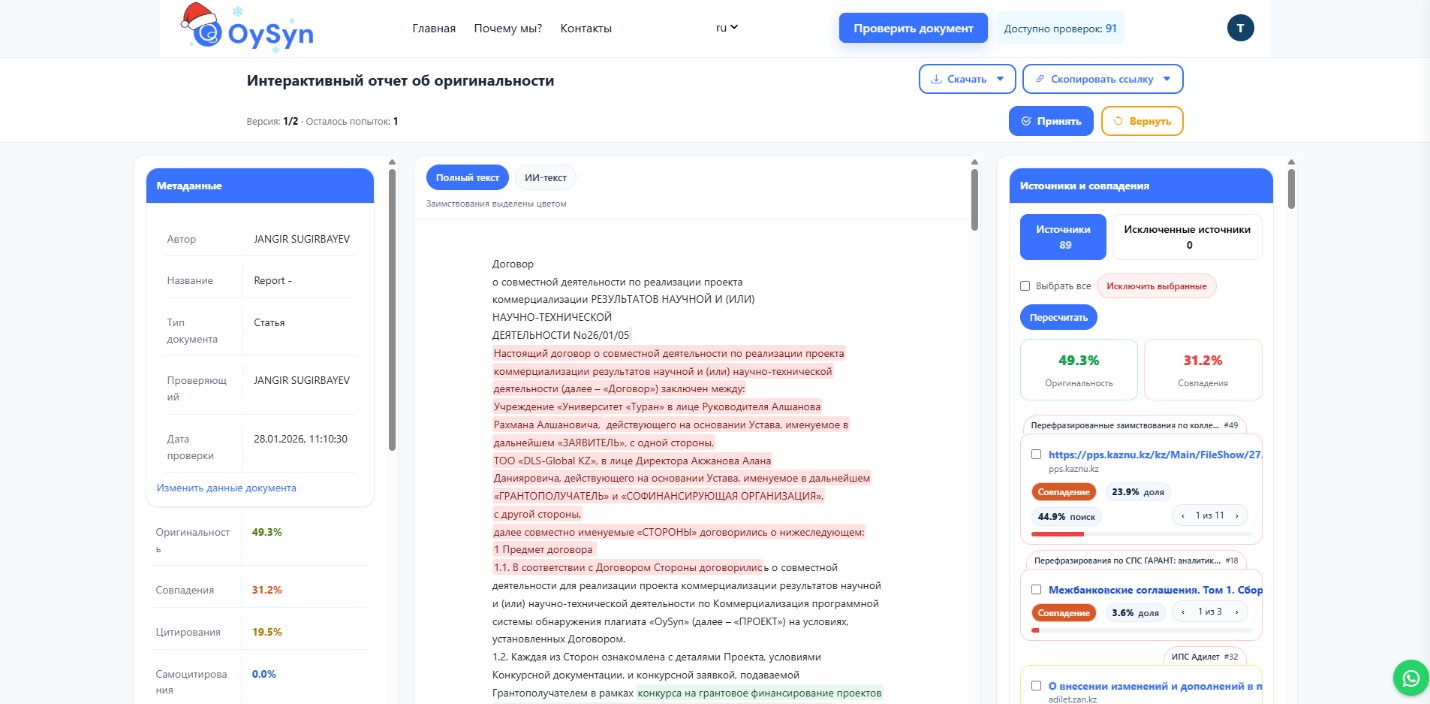
The interactive report page consists of three main blocks.
1. Summary
Contains the sections: - Metadata
- Suspicious activity
- Results by module
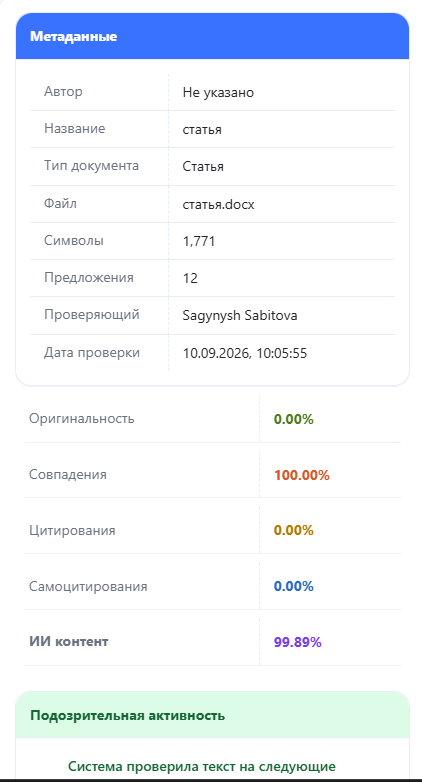
Metadata includes information about the student and the check scores: originality, matches, citations, self-citations and AI content (if that check was enabled).
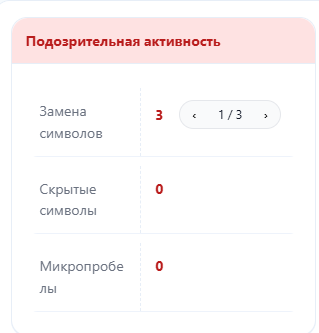
Suspicious activity shows possible technical attempts to distort the text: - character replacement
- hidden characters
- micro-spaces
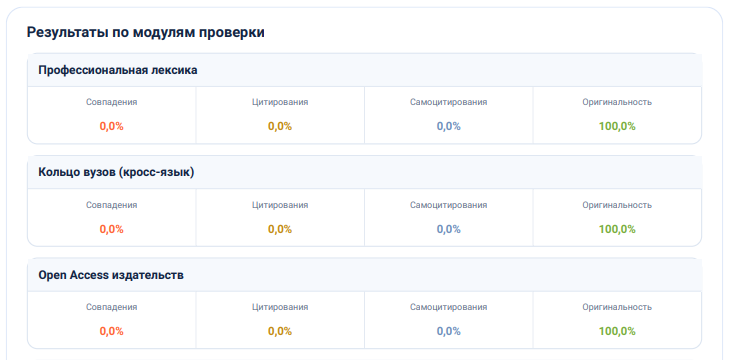
Results by module show the match, citation, self-citation and originality scores for each enabled check module.
2. Text of the work
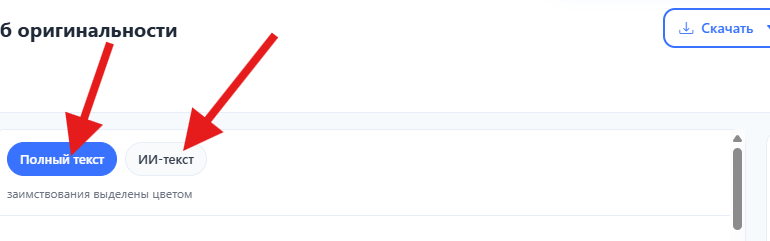
This block has the tabs
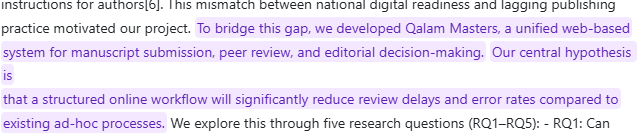
- Full text — shows the whole text of the work with borrowings highlighted

- AI text (if the module is enabled) — shows the text with fragments classified as AI-generated highlighted
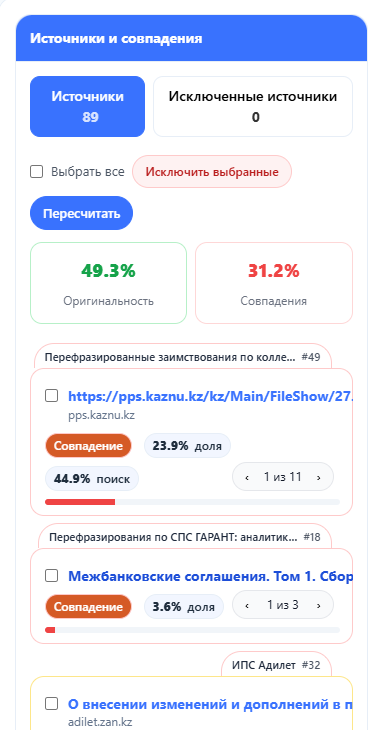
3. Sources and matches
This section lists the detected sources of borrowings and the match percentage for each.
Resubmitting work
If the work was returned for revision and the assignment settings allow several attempts, the student can reopen the assignment and upload a corrected file.
A notice of the return is also sent by email.
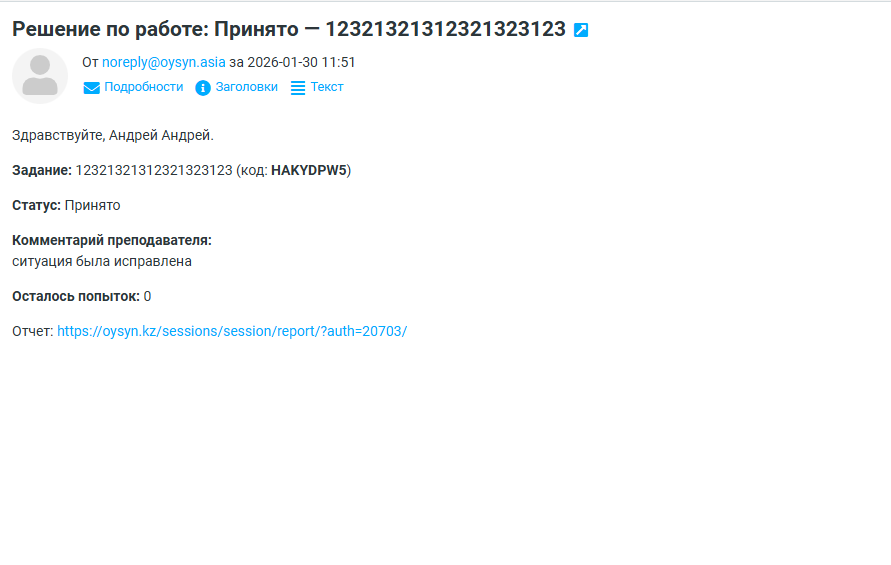
After resubmitting, the student waits for the teacher's review; the results for all uploaded versions of the work then become available in the system.